Resolution Guide
CS2 16:10 Resolution Guide: 1680x1050 & 1440x900 Setup (NVIDIA, AMD & Intel)
In CS2, resolution choice is an exercise in geometric trade-offs. While 4:3 stretched (primarily 1280x960) remains the choice of the majority of active professional players across community tracking databases, 16:10 serves as a pragmatic middle ground for players who want horizontal model expansion without sacrificing as much peripheral vision.
This guide breaks down the physical geometry of 16:10 on 16:9 displays, calculates FOV and pixel workloads, and provides driver configurations for NVIDIA, AMD, and Intel.
- 8 min read
Why 16:10? The Geometry, FOV & Stretch Trade-Off
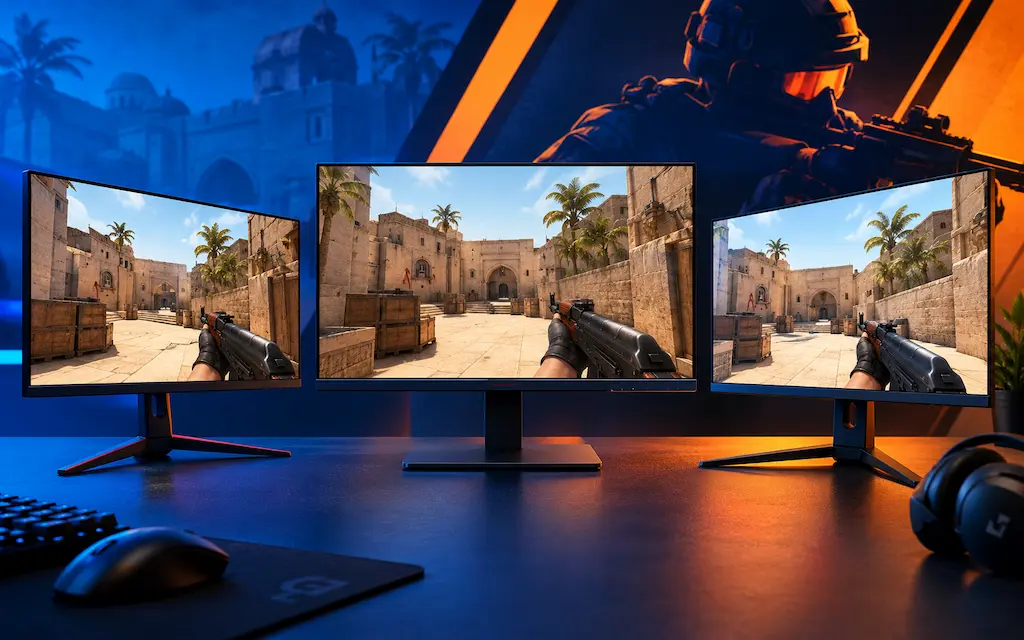
16:10 sits strictly between native 16:9 and 4:3 stretched, functioning as a balanced geometric compromise:
• The 1.11x Stretch Factor: On a standard 16:9 monitor, stretching a 16:10 frame widens target silhouettes by exactly 1.11x (+11.1%). By comparison, 4:3 stretched widens models by 1.33x (+33.3%). You get broader enemy models without the aggressive horizontal acceleration and visual distortion of 4:3.
• Field of View (100.4° vs 90.0°): CS2 uses Hor+ field of view scaling. While 4:3 drops horizontal FOV to 90.0° (cutting 16.3° of peripheral vision relative to 16:9's 106.3°), 16:10 provides ~100.4°. You lose only 5.9° compared to native 16:9, preserving roughly 10.4° more vision than 4:3 players.
• GPU Workload Relief: 1680x1050 cuts pixel rendering load by 14.9% relative to 1080p, while 1440x900 reduces it by 37.5%. On GPU-bound systems, this provides smoother frametimes and higher 1% lows.
Note: If your system is CPU-bound (GPU utilization sits below 90% in CS2), dropping resolution will not meaningfully increase framerates. In that scenario, 16:10 is chosen strictly for target sizing and visual focus.
1680x1050 vs 1440x900: Which 16:10 Resolution to Use?
Because both resolutions share the exact same 1.11x horizontal stretch on a 16:9 monitor, the choice between 1680x1050 and 1440x900 is strictly about rendering workload and interpolation clarity.
1680x1050 (16:10) — The Clarity-First Option
Best Balance for 1080p Panels
Renders 1,764,000 pixels — roughly 14.9% fewer pixels than 1920x1080. On standard 1080p monitors, 1680x1050 requires less aggressive interpolation than 1280x960 4:3, avoiding severe pixel softening. Kill feed, radar, and player outlines at long range remain legible and distinct.
Best for:
- Players seeking wider models without the heavy interpolation blur of 1280x960 4:3
- Systems with modern mid-range GPUs (e.g., RTX 3060 / 4060, RX 6600 / 7600)
- Players who rely heavily on radar and small HUD information during rounds
- Competitors transitioning from 16:9 who want minimal visual disruption
1440x900 (16:10) — The Workload-Reduction Option
Maximum Pixel Reduction at 16:10
Renders 1,296,000 pixels — roughly 37.5% fewer pixels than 1080p, placing GPU workload near 1280x960 4:3 (1.23M px). It delivers the same 1.11x stretch factor as 1680x1050, but provides fillrate relief when the graphics card runs above 90% load. The trade-off on a 1080p panel is visible softening on distant targets (40+ meters).
Best for:
- Entry-level GPUs (GTX 1050 Ti, GTX 1650, RX 570, RX 6400) running above 90% load
- Integrated graphics (Intel Iris Xe, AMD Radeon 680M / 780M)
- Monitors with a native 1440x900 panel resolution (1:1 pixel mapping)
- Players who need 4:3-tier GPU workload relief while keeping 100.4° FOV
NVIDIA: How to Set Up 16:10 in CS2 (Step-by-Step)
NVIDIA handles 16:10 stretched through its GPU display scaler. If 1680x1050 or 1440x900 does not appear natively in your resolution menu, define it as a custom resolution first.
1Open NVIDIA Control Panel
Right-click Windows Desktop and select 'NVIDIA Control Panel'. If missing, open it from the Windows Start menu or system tray.
Note on Laptops with Hybrid Graphics: If your laptop lacks a physical MUX switch and the internal display is routed through an Intel or AMD integrated GPU, display scaling options in NVIDIA Control Panel may be inaccessible. In that scenario, configure display scaling in the Intel or AMD software instead.
2Create a Custom 16:10 Resolution (if Not Listed)
In NVIDIA Control Panel: Display → Change resolution → Customize:
• Check 'Enable resolutions not exposed by the display'
• Click 'Create Custom Resolution'
• Horizontal pixels: 1680 (or 1440)
• Vertical lines: 1050 (or 900)
• Refresh rate: enter your monitor's native maximum (144, 165, 240 Hz)
• Timing: Automatic (or CVT-RB if your panel requires reduced blanking for high refresh rates)
Click 'Test'. The screen will flicker briefly. Accept the test result and click OK. If the screen remains black, wait 15 seconds — the driver will automatically revert to your native desktop resolution.
If the test fails, switch Timing to 'CVT-RB' (Coordinated Video Timings - Reduced Blanking). High-refresh panels often require reduced blanking intervals to accept custom non-native timings.3Configure GPU Scaling: Full-Screen (No Black Bars)
In NVIDIA Control Panel: Display → Adjust desktop size and position:
• Select scaling mode: 'Full-screen'
• Perform scaling on: 'GPU'
• Check 'Override the scaling mode set by games and programs'
Click Apply.
Test both GPU and Display scaling: GPU scaling is generally recommended for consistent behavior, but modern fast gaming monitors with low-latency scalers may perform equally well on Display scaling.4Apply In-Game Video Settings in CS2
Launch CS2 → Settings → Video:
• Aspect Ratio: 16:10
• Resolution: 1680x1050 (or 1440x900)
• Display Mode: Fullscreen
• Refresh Rate: set to your maximum panel refresh rate
• NVIDIA Reflex Low Latency: Enabled
Click Apply.
Display Mode must be set to 'Fullscreen'. 'Fullscreen Windowed' routes output through the Windows Desktop Window Manager (DWM), which ignores GPU scaling and results in black bars.
AMD: How to Set Up 16:10 in CS2 (Step-by-Step)
AMD Radeon Software (Adrenalin Edition) controls non-native stretching through its GPU Scaling and Full Panel settings.
1Open AMD Software: Adrenalin Edition
Right-click Windows Desktop and select 'AMD Software: Adrenalin Edition', or launch it from the system tray icon.
2Create a Custom Resolution
In AMD Software → Settings (gear icon) → Display tab → Custom Resolutions:
• Click 'Create New'
• Resolution (Px): 1680 x 1050 (or 1440 x 900)
• Refresh Rate: match your display's native maximum (e.g., 144Hz, 240Hz)
• Timing Standard: CVT or CVT-Reduced Blanking
Click Create to test and save the profile.
If Custom Resolutions is unavailable, verify your monitor is connected via DisplayPort or HDMI directly to your Radeon GPU, not through an unpowered passive hub.3Enable GPU Scaling and Set Full Panel Mode
In AMD Software → Settings (gear icon) → Display tab:
• GPU Scaling: Toggle Enabled
• Scaling Mode: Select 'Full Panel'
• Integer Scaling: Disabled
This instructs the Radeon display pipeline to stretch 16:10 signals across the entire 16:9 panel.
Driver updates can occasionally reset GPU Scaling to Disabled. If CS2 suddenly exhibits black bars after updating Adrenalin, verify this setting first.4Configure CS2 Video Settings
Launch CS2 → Settings → Video:
• Aspect Ratio: 16:10
• Resolution: 1680x1050 (or 1440x900)
• Display Mode: Fullscreen
• FidelityFX Super Resolution: Disabled
Click Apply Changes.
Intel: How to Set Up 16:10 in CS2 (Step-by-Step)
On standalone Intel Arc GPUs or laptops where the display panel is wired directly to Intel integrated graphics, display scaling is managed in Intel Graphics Command Center or Intel Graphics Software.
1Open Intel Graphics Software
Search for 'Intel Graphics Command Center' or 'Intel Graphics Software' in the Windows Start menu.
Important for Laptops with Hybrid Graphics: On dual-GPU laptops without a physical MUX switch, the internal panel is connected to the integrated GPU. Display scaling must be set in the integrated graphics control panel to take effect on the internal screen.
2Add a Custom 16:10 Resolution
In Intel Graphics Command Center → Display tab:
• Under Custom Resolutions, click the '+' icon
• Width: 1680 (or 1440)
• Height: 1050 (or 900)
• Refresh Rate: your monitor's maximum
• Timing: CVT-RB
Click OK / Add. Confirm the screen test.
3Set Scaling to 'Scale Full Screen'
In Intel Graphics Command Center / Intel Graphics Software → Display tab → General:
• Under Scale, select 'Scale Full Screen' (or 'Stretched')
Click Apply to save the configuration.
4Select 16:10 in CS2 Video Menu
Launch CS2 → Settings → Video:
• Aspect Ratio: 16:10
• Resolution: 1680x1050 (or 1440x900)
• Display Mode: Fullscreen
Click Apply.
CS2 In-Game Settings, Launch Options & Mouse Sensitivity
GPU scaling handles panel stretching, but game-level settings determine frame pacing and input consistency.
1Optimized CS2 Video Configuration
In CS2 Settings → Video:
• Display Mode: Fullscreen (mandatory)
• Aspect Ratio: 16:10
• Resolution: 1680x1050 (or 1440x900)
• Refresh Rate: Native Maximum (144Hz, 240Hz, etc.)
• Boost Player Contrast: Enabled
• Wait for Vertical Sync: Disabled
• NVIDIA Reflex Low Latency: Enabled
• FidelityFX Super Resolution (FSR): Disabled
• Global Shadow Quality: Low or Medium
• Dynamic Shadows: All (essential for spotting opponent shadows cast from doorways and lamps)
• Model / Texture Detail: Low
• Particle Detail: Low
• Ambient Occlusion: Disabled
2Steam Launch Options for CS2
Right-click Counter-Strike 2 in Steam → Properties → General → Launch Options:
-novid -fullscreen
-novid skips the initial Valve video, while -fullscreen requests exclusive display access. Outdated CS:GO commands such as -stretchaspect and mat_setvideomode are obsolete in Source 2 and should be removed. Optional: append -w 1680 -h 1050 if CS2 resets resolution after major game updates.
3Mouse Sensitivity: Do You Need to Change Sensitivity or m_yaw?
No. In CS2, mouse sensitivity is angular: 1 count of mouse movement turns your in-game crosshair by a fixed number of degrees regardless of aspect ratio or resolution. A 180° flick requires the exact same physical distance on your mousepad on 16:10 stretched as it does on native 16:9.
Because 16:10 is stretched horizontally by 1.11x, crosshair movement across the monitor appears 11.1% faster to the eye on the horizontal axis. Do not adjust m_yaw or multiply your sensitivity by arbitrary multipliers. Doing so corrupts your physical muscle memory. Most players adapt to the mild 1.11x stretch within a few matches without changing their sensitivity settings.
4Troubleshooting: How to Recover from a Black Screen
If your monitor displays 'Input Not Supported' or a black screen after testing a custom resolution:
1. Do not press keys for 15 seconds. Display drivers automatically cancel unconfirmed custom resolutions and revert to native.
2. If stuck in-game, press Alt + Enter to toggle CS2 to Windowed mode, restoring access to the video settings menu.
3. If CS2 crashes on launch, add -w 1920 -h 1080 to your Steam Launch Options to force a native 1080p startup, then reconfigure settings.
What to Expect: Realistic Hardware Impact
Resolution adjustments affect GPU fillrate workloads. Because CS2 is heavily CPU- and cache-bound, framerate scaling depends on where your system bottleneck lies.
GPU-Bound Budget Systems (GTX 1650, RX 6500 XT, iGPUs)
When a graphics card runs above 90% utilization at 1080p Low, dropping to 1440x900 (-37.5% pixels) reduces memory bandwidth and fillrate pressure. This provides more consistent frametimes during heavy smoke and particle rendering.
CPU-Bound Systems
When the GPU runs below 90% utilization at 1080p, reducing resolution to 1680x1050 or 1440x900 will produce virtually no change in average FPS or 1% lows. Here, 16:10 is chosen for target width and peripheral framing, not framerate.
Laptops with Native 16:10 Panels (1920x1200, 2560x1600)
On laptops with native 16:10 displays, running at native resolution (1920x1200 or 2560x1600) yields 1:1 pixel mapping with 100.4° FOV and zero horizontal stretch. Lowering to 1680x1050 will introduce display scaling on a 1200p panel.
Frequently Asked Questions
No. On a standard 16:9 monitor, 16:10 stretched widens targets by 1.11x (+11.1%), whereas 4:3 stretched widens targets by 1.33x (+33.3%). 16:10 is chosen as a balanced compromise: you get wider models than native 16:9 while retaining approximately 10.4° more horizontal field of view than 4:3.
The main geometric difference is that 16:10 reduces horizontal FOV by only 5.9° compared to native 16:9, whereas 4:3 cuts 16.3°. In addition, 1680x1050 on a 1080p panel requires less aggressive scaling than 1280x960, preserving clearer HUD elements and distant target outlines.
Yes. Because 16:10 is narrower horizontally than 16:9 (1.60 aspect ratio vs 1.78), displaying it without scaling produces vertical black bars on the left and right sides of your screen (pillarbox). Enabling 'Full-Screen' GPU scaling in NVIDIA, AMD, or Intel control panels stretches the frame to fill the display.
On laptops equipped with a native 16:10 display (such as 1920x1200 or 2560x1600), selecting the native resolution provides 1:1 pixel rendering without black bars, stretching, or driver scaling latency. Running lower custom resolutions like 1680x1050 on a 1200p panel will still require display interpolation.
Resolution and aspect ratio configurations handled through GPU drivers and in-game video menus do not modify game files and are standard display settings supported by the CS2 client and competitive platforms like FACEIT. Always verify event-specific rulebooks before LAN tournaments.
No. Sensitivity in CS2 is angular; a 180° turn requires the exact same physical mousepad movement regardless of aspect ratio. While the 1.11x stretch makes horizontal tracking look 11.1% faster to the eye, modifying sensitivity or m_yaw disrupts muscle memory. Most players adapt to the visual change within a few matches without altering their sensitivity.
You must create it as a custom resolution in your GPU control software (NVIDIA Control Panel, AMD Software, or Intel Graphics Command Center) matching your monitor's native refresh rate. After saving the custom resolution, restart CS2 and select it in the Video settings menu.
You May Also Like
- Bufferbloat Fix & Network Tuning for CS2 & Valorant: Complete Guide
- How to Set Up 4:3 Stretched in CS2: No Black Bars + FPS Boost (NVIDIA, AMD & Intel)
- Best Budget Gaming PC Cases under $50
- Best Ultra-Budget 240Hz Monitors Under $120 for CS2 & Valorant (2026)
- Best Ultra-Budget 144Hz Monitors Under $80 for CS2 & Valorant (2026)