Resolution Guide
How to Set Up 4:3 Stretched in CS2: No Black Bars + FPS Boost (NVIDIA, AMD & Intel)
A majority of professional CS2 players use 4:3 stretched resolution — not because it looks better, but because it works better. At 1280x960 or 1024x768 stretched, your GPU renders 35-60% fewer pixels than at 1080p, unlocking FPS gains and widening enemy models for easier spray control.
This step-by-step guide shows you exactly how to set up 4:3 stretched in CS2 on NVIDIA, AMD, and Intel graphics — without black bars or third-party tools.
- 8 min read
Why 4:3 Stretched Works in CS2: The Real Reasons Pros Use It
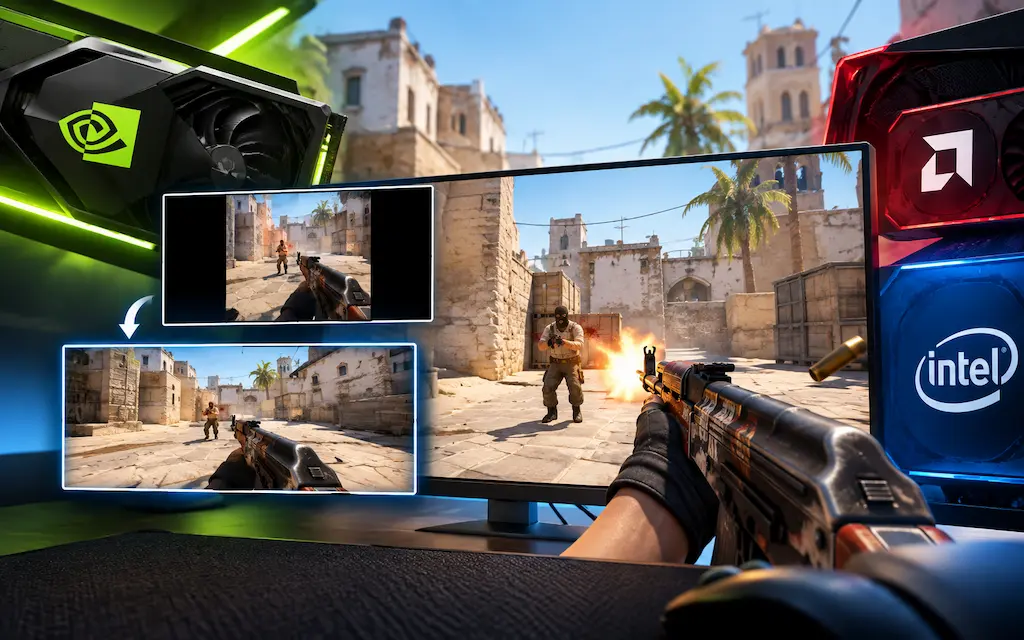
4:3 stretched in CS2 is a deliberate competitive optimization with two key advantages:
• Advantage 1: Raw FPS boost. At 1280x960 (4:3), your GPU renders ~41% fewer pixels than at 1080p (and ~62% fewer at 1024x768). Lower resolution means higher framerates and tighter 1% Low FPS stability during heavy firefights.
• Advantage 2: Wider player models. Scaling a 4:3 frame to a 16:9 monitor stretches enemy silhouettes horizontally (~1.5x at 1280x960) without changing hitboxes, making targets easier to track and spray.
Note: GPU scaling only works in Fullscreen mode. In Borderless Windowed, the Windows compositor forces desktop resolution, resulting in black bars.
Which 4:3 Resolution Should You Use? Full Comparison
All three common 4:3 resolutions have different FPS-to-clarity trade-offs. Choose based on your GPU's capabilities and your monitor's native pixel grid.
1280x960 (4:3) — The Professional Standard
Most Popular — Recommended
The most widely used stretched resolution on the professional CS2 circuit in 2026. Renders about 41% fewer pixels than 1920x1080 with a clean 4:3 ratio. HUD text, bomb timers, and kill feed remain clearly readable, and enemies are identifiable at all realistic combat distances. The horizontal stretch factor on a 1080p monitor is approximately 1.5x — enough to noticeably widen models without the extreme distortion of lower resolutions.
Best for:
- Budget GPUs (GTX 1650, RX 6500 XT, Intel Arc A380) that struggle at 1080p
- Players with 1080p or 1440p monitors wanting maximum clarity at 4:3
- Matching the resolution used by most professional CS2 players who play stretched
- Players who used CS:GO 1280x960 and want consistency
1024x768 (4:3) — The Classic CS 1.6 Legacy Resolution
Maximum FPS — Lowest Clarity
The resolution from CS 1.6 and early CS:GO. Renders about 62% fewer pixels than 1080p — delivering the highest possible FPS on any hardware among the common 4:3 options. Player models are very wide (approximately 1.875x horizontal stretch on a 1080p monitor), making spray control intuitive for players who practiced on this resolution for years. The trade-off is significant visual blur at all distances — enemies at 30+ meters become indistinct blobs.
Best for:
- Very old or integrated graphics that cannot hold 100+ FPS at 1280x960
- Players who have used 1024x768 since CS 1.6 and want muscle memory consistency
- Absolute maximum FPS on hardware at end-of-life for CS2
1280x1024 (5:4) — The Borderline Option
Niche — 5:4 Not True 4:3
Technically a 5:4 aspect ratio, not 4:3. When stretched to 16:9, the distortion is slightly less extreme than true 4:3 resolutions. 1280x1024 renders about 37% fewer pixels than 1080p. Not commonly used in the current competitive meta — only relevant if you own a physical 5:4 native monitor and want zero upscaling blur.
Who should consider it:
- Users with 5:4 native monitors wanting zero upscaling interpolation
- Transitional players who find full 4:3 stretch too visually jarring
NVIDIA: How to Set Up 4:3 Stretched in CS2 (Step-by-Step)
The NVIDIA Control Panel is the most straightforward path to 4:3 stretched with no black bars. This method works on all NVIDIA GeForce GPUs from GTX 900-series and newer, including notebook GPUs.
1Open NVIDIA Control Panel
Right-click Windows Desktop → select 'NVIDIA Control Panel'.
If missing, your desktop is rendering on Intel iGPU (common on laptops) — proceed to Step 2 to force NVIDIA output for CS2.
On NVIDIA Optimus laptops, confirm CS2 runs on the discrete NVIDIA GPU for scaling settings to take effect.2Force CS2 to Run on the NVIDIA GPU (Laptops)
On laptops with NVIDIA Optimus (Intel + NVIDIA), make sure CS2 uses the discrete GPU:
• Option A (NVIDIA Control Panel): Manage 3D Settings → Program Settings → Add Counter-Strike 2 (cs2.exe) → Preferred graphics processor: High-performance NVIDIA processor.
• Option B (Windows Settings): System → Display → Graphics → Add cs2.exe → Options → High performance.
This guarantees NVIDIA scaling settings apply to CS2 instead of Intel iGPU.
3Set Scaling Mode to Full-Screen (No Black Bars)
In NVIDIA Control Panel → Display → Adjust desktop size and position:
• Scaling: Select 'Full-screen'
• Perform scaling on: Select 'GPU'
• Checkbox: Tick 'Override the scaling mode set by games and programs'
Click Apply to stretch any 4:3 resolution fullscreen without black bars.
Important: Always select 'GPU' scaling and tick the 'Override' checkbox — otherwise Windows or CS2 will override your settings and force black bars.4Set the Resolution in CS2 In-Game
Launch CS2 → Settings → Video and set:
• Resolution: 1280x960 (or 1024x768)
• Aspect Ratio: 4:3
• Display Mode: Fullscreen
If your target resolution isn't listed, create a Custom Resolution in NVIDIA Control Panel (Change resolution → Customize → Create Custom Resolution) with your monitor's refresh rate.
If black bars persist after applying: re-check Step 3 in NVIDIA Control Panel — ensure 'Perform scaling on: GPU' is set and the 'Override' checkbox is checked.5Verify the Stretch is Active
In CS2, check if 4:3 stretched is active:
• Enable FPS Counter: Settings → Game → Telemetry → Show FPS and Frame Time ON (or console: cl_showfps 2).
• Visual Check: Look at the round HUD timer — at 4:3 stretched it appears as a horizontal oval rather than a circle.
AMD: How to Set Up 4:3 Stretched in CS2 (Step-by-Step)
AMD Radeon Software (Adrenalin Edition) requires two settings to be changed: GPU Scaling must be enabled, and Scaling Mode must be set to Full Panel. This applies to all RDNA and GCN cards (RX 400-series and newer).
1Open AMD Software: Adrenalin Edition
Right-click Windows Desktop → select 'AMD Software: Adrenalin Edition'.
For laptops: ensure CS2 uses High Performance GPU (Windows Settings → System → Display → Graphics → cs2.exe → High Performance).
2Enable GPU Scaling
In AMD Software → Display tab:
• GPU Scaling: Toggle ON
This forces the AMD driver to handle scaling instead of your monitor.
3Set Scaling Mode to Full Panel
In AMD Software → Display tab:
• GPU Scaling: Toggle ON
• Scaling Mode: Select 'Full Panel'
This stretches lower 4:3 resolutions horizontally to fill the entire 16:9 screen.
Note: On some AMD drivers, GPU Scaling appears under Display → General. If missing, update AMD Software.4Set the Resolution in CS2 In-Game
Launch CS2 → Settings → Video and set:
• Resolution: 1280x960 (or 1024x768)
• Aspect Ratio: 4:3
• Display Mode: Fullscreen
If black bars still appear: return to AMD Software, confirm GPU Scaling is ON and Scaling Mode is Full Panel, then fully restart CS2.5Optional: Save an AMD Display Profile
Save your display configuration as an AMD Profile:
• Name: CS2 Stretched
This lets you switch back to native desktop resolution without re-entering settings each session.
Intel: How to Set Up 4:3 Stretched in CS2 (Step-by-Step)
Intel integrated graphics (Intel UHD, Iris Xe) and discrete Intel Arc GPUs both support display scaling. This section covers Intel Arc Control / Intel Graphics Software (12th Gen and newer Iris Xe, all Intel Arc GPUs) and Intel Graphics Command Center (10th/11th Gen).
1Open Intel Graphics Software
Search 'Intel' in Start Menu → open 'Intel Arc Control' / 'Intel Graphics Software' (12th Gen+) or 'Intel Graphics Command Center'.
On laptops with dual GPUs (Intel + NVIDIA/AMD), scaling is handled by your discrete GPU driver, not Intel.2Navigate to Display Scaling Settings
In Intel Software → Display → select monitor → locate 'Scaling' drop-down.
3Set Scaling to 'Scale Full Screen'
In Intel Arc Control / Intel Graphics Command Center → Display:
• Scaling: Select 'Scale Full Screen' (or 'Stretched')
• Override: Toggle 'Override Application Settings' ON if available
Click Apply to enforce GPU stretching.
Note: If scaling options are greyed out, connect your monitor directly via HDMI/DisplayPort without USB-C hubs.4Set the Resolution in CS2 In-Game
Launch CS2 → Settings → Video and set:
• Resolution: 1280x960 (or 1024x768)
• Aspect Ratio: 4:3
• Display Mode: Fullscreen
On Intel Iris Xe, expect a meaningful FPS gain at 1280x960 compared to 1080p.
CS2 In-Game Settings, Launch Options & Console Commands for 4:3 Stretched
GPU driver scaling is only half the setup. These CS2-specific settings ensure the game renders at 4:3 correctly and maximizes the FPS benefit.
1Video Settings — Exact Configuration
CS2 Settings → Video. Set:
• Resolution: 1280x960 (or 1024x768)
• Aspect Ratio: 4:3
• Display Mode: Fullscreen (mandatory — Borderless ignores GPU scaling)
• V-Sync: Disabled
• FidelityFX Super Resolution (FSR): Disabled
• Global Shadow Quality: Very Low
• Model/Texture Detail: Low
• Shader Detail: Low
• Particle Detail: Low
• Ambient Occlusion: Disabled
Click Apply. CS2 switches to 4:3 fullscreen. If you see black bars, your GPU driver scaling is not active — revisit the appropriate driver section.
2Steam Launch Options
Right-click CS2 in Steam → Properties → General → Launch Options. Enter:
-novid -nojoy -fullscreen
-novid skips the Valve intro, -nojoy disables joystick scanning, -fullscreen forces exclusive fullscreen even after crashes or updates. Optional: add -w 1280 -h 960 as a fallback if CS2 ever reverts your resolution after a patch.
Do not add -stretchaspect or mat_setvideomode. Both are CS:GO-era Source 1 commands that no longer function in CS2's Source 2 engine. The stretch is controlled by GPU driver scaling, not launch options or console commands.3Console Commands to Run After Switching to 4:3
Open the developer console (~) and enter:
• fps_max 0 — Remove the FPS cap so you can see your true uncapped framerate at 4:3
• cl_showfps 2 — FPS counter with min/average stats (or use Settings → Game → Telemetry → Show FPS and Frame Time for a persistent overlay without console commands)
For sensitivity: the exact multiplier depends on your stretch factor. At 1280x960 (≈1.5x horizontal stretch), try multiplying your existing sensitivity by roughly 0.65-0.7 to keep horizontal tracking feeling the same as at 16:9. At 1024x768 (≈1.875x stretch), try roughly 0.5-0.55. Many players skip this entirely and simply adapt to the faster horizontal response, since some consider it beneficial for spray control.
4Troubleshooting: Black Bars or Resolution That Won't Stick
If black bars still appear or resolution reverts to native:
1. Disable Fullscreen Optimizations: Right-click cs2.exe → Properties → Compatibility → Change high DPI settings → Disable Fullscreen Optimizations.
2. Check GPU Override: Ensure 'Override the scaling mode set by games and programs' is checked in NVIDIA / Intel control panel.
3. Custom Resolution: If 1280x960 is missing, create it manually in your GPU control panel with your monitor's refresh rate.
4. Monitor OSD: Check physical monitor menu buttons → set Scaling / Aspect Ratio to 'Full' or 'Auto'.
5Verify Stretch is Working — 3 Visual Checks
In-game, confirm 4:3 stretched with three quick checks:
1. Round HUD timer — appears as a horizontal oval at 4:3 stretched; a perfect circle means 16:9 is still active
2. AWP/SSG 08 scope ring — oval shape confirms stretch is on
3. Player model proportions — enemies should look noticeably wider than in your 16:9 screenshots
If all three look perfectly round/proportional, Fullscreen mode is not active or GPU scaling was not saved correctly — revisit your GPU driver settings.
What to Expect: 4:3 Stretched vs 1080p, By Hardware Tier
The figures below reflect commonly reported ranges from players on similar hardware, not controlled benchmarks — your actual gain depends on your CPU, drivers, and in-game settings.
Budget GPU: GTX 1650 / RX 6500 XT / Intel Arc A380
At 1920x1080 Low settings, these GPUs commonly deliver roughly 90-140 FPS in CS2. At 1280x960 stretched, many players report gains into the 150-220 FPS range. At 1024x768, some setups push higher still. For this hardware tier, 4:3 stretched is one of the highest-impact free changes available — the difference between struggling to hold 90 FPS and running well above your monitor's refresh rate is a meaningful competitive difference on a 144Hz panel.
Mid-Range GPU: RTX 3060 / RX 6600 / RTX 2070
At 1080p Low, these GPUs are typically already delivering high average FPS (250-400+) in CS2, so the raw average-FPS gain from 4:3 stretched matters less here. The bigger benefit tends to be 1% Low stability — frame time spikes during flashbang-heavy rounds are usually less pronounced because the GPU runs at a larger margin below its render limit. A high, stable average FPS with fewer dips is generally a better competitive experience than a slightly higher peak average with worse 1% Lows.
Integrated Graphics: Intel Iris Xe / AMD Radeon 680M (Laptops)
This is usually the most dramatic improvement category. At 1080p Low, Intel Iris Xe often struggles to hold a consistent 40-70 FPS in CS2. At 1280x960, players commonly report noticeably higher and steadier framerates. AMD Radeon 680M-class laptops (e.g. Ryzen 7 6800H) tend to perform somewhat better at native settings and see a similar relative improvement stretched. For laptop CS2 players without a discrete GPU, 4:3 stretched combined with Low settings is typically the single most impactful optimization available.
Frequently Asked Questions
Yes, and a large share of the professional scene uses it. Community trackers of pro player settings (such as HLTV's pro settings database) have historically shown that well over half of top-level CS2 players use a 4:3 stretched resolution — 1280x960 being the most common. The two competitive reasons are: (1) a lighter rendering load, which can improve frame delivery consistency and reduce input lag on some systems; and (2) wider player models — enemy silhouettes are horizontally stretched, making them a larger visual target with no hitbox change. This is used openly at every CS2 Major and is not a cheat or exploit.
Black bars appear when: (1) Display Mode in CS2 is set to Fullscreen Windowed or Borderless — change to Fullscreen; (2) GPU driver scaling is misconfigured — NVIDIA needs 'Perform scaling on: GPU' + 'Scaling: Full-screen' + the 'Override the scaling mode set by games and programs' checkbox ticked, AMD needs GPU Scaling ON + Scaling Mode: Full Panel, Intel needs 'Scale Full Screen' (plus its Override toggle, if available); (3) on laptops, CS2 renders through the wrong GPU — force CS2 to the discrete GPU in Windows Display Graphics settings; (4) Windows 'Fullscreen optimizations' is overriding the driver's scaling — disable it in the CS2 executable's Compatibility properties; (5) your monitor's OSD has its own scaling setting overriding the GPU — enter the physical on-screen menu and set Image Size or Scaling to 'Full' or 'Auto'.
Yes. CS2's horizontal mouse input uses the same yaw scaling regardless of resolution, calibrated for 16:9 monitors. At 4:3 stretched, horizontal mouse movement covers more pixels per centimeter because the narrower 4:3 frame is stretched to fill the full 16:9 panel width — making horizontal tracking feel noticeably faster, roughly in proportion to your stretch factor (about 1.5x at 1280x960, about 1.875x at 1024x768). If you want to preserve your original 16:9 feel, lower your sensitivity by roughly that same factor; many players instead accept the faster horizontal response as a benefit for spray control and leave sensitivity unchanged.
Yes, but with caveats. On 2560x1440, 1280x960 hits a clean 1.5x vertical scale factor but non-integer horizontal scaling introduces slight blur. On 4K (3840x2160), 1280x960 stretch introduces more visible interpolation blur. The competitive FPS and model-width advantages still apply, but image clarity at distance is reduced compared to a 1080p monitor. Many high-refresh 1440p and 4K monitor owners prefer running 1080p or native settings in CS2 instead of 4:3 stretched, or use a custom resolution (e.g. 1920x1440) that scales more cleanly to their panel.
No. Borderless Windowed forces CS2 to output at the Windows desktop resolution and routes frames through the Windows compositor (DWM). DWM does not apply GPU driver scaling — your 4:3 content appears as a centered window with black bars. Only Exclusive Fullscreen mode gives CS2 the direct display output path that GPU driver scaling requires. There is no reliable workaround for this in CS2.
Yes, completely. Changing display resolution through GPU driver settings is a hardware-level display configuration, not a game modification. Both Valve's official CS2 Majors and FACEIT Premier allow 4:3 stretched. The approach has been used openly on the professional circuit since CS 1.6 and has never been considered a ToS violation.
Some monitors override GPU driver scaling with their own OSD (on-screen display) setting. Enter your monitor's OSD using the physical buttons on the display bezel. Look for a setting labeled Scaling, Aspect Ratio, Image Size, or Aspect Control. Set it to Full Screen, Full, or Auto. Also check Windows: disabling 'Fullscreen optimizations' on the CS2 executable (Properties → Compatibility) resolves this for a number of players even when both the GPU driver and monitor settings look correct. After changing these, GPU driver scaling should take effect correctly.
Yes — the method is the same GPU driver scaling used for CS2: create a 4:3 resolution such as 1280x960 in your GPU control panel, enable Full-screen/GPU scaling (with NVIDIA's Override checkbox or AMD's GPU Scaling toggled on), then in Valorant go to Settings → Video → General, select that resolution, set Aspect Ratio Method to 'Fill', and run in exclusive Fullscreen. The key difference from CS2 is that Valorant's FOV is locked at 103° regardless of resolution, so stretching doesn't give you extra peripheral vision the way it can in some other engines — the effect is mainly a wider crosshair, wider weapon and character models, and a modest FPS gain from rendering fewer pixels, rather than a wider field of view.
You May Also Like
- Budget Keyboard Tuning: The $2 Tape Mod for a Premium Sound and Feel
- CS2 Mouse Settings Guide 2026: DPI, eDPI & Sensitivity Explained
- Best Ultra‑Budget PSU 2026: MSI MAG A550BN vs Thermaltake Smart 600W vs Apevia SP700 — Are Extra Watts a Lie?
- CS2 FPS Boost Guide 2026: Best Settings for Max Performance
- Best Ultra-Budget 240Hz Monitors Under $120 for CS2 & Valorant (2026)