Audio Guide
How to Hear Footsteps in CS2 & Valorant: Loudness Equalization + Audio Settings Guide
Stop missing quiet enemy footsteps in CS2 and Valorant. This guide covers Windows Loudness Equalization, in-game audio settings, Valorant HRTF, and a free Equalizer APO profile to boost footstep clarity on any headset in minutes for free.
- 8 min read
Why Default Windows Audio Buries Footsteps in CS2 & Valorant
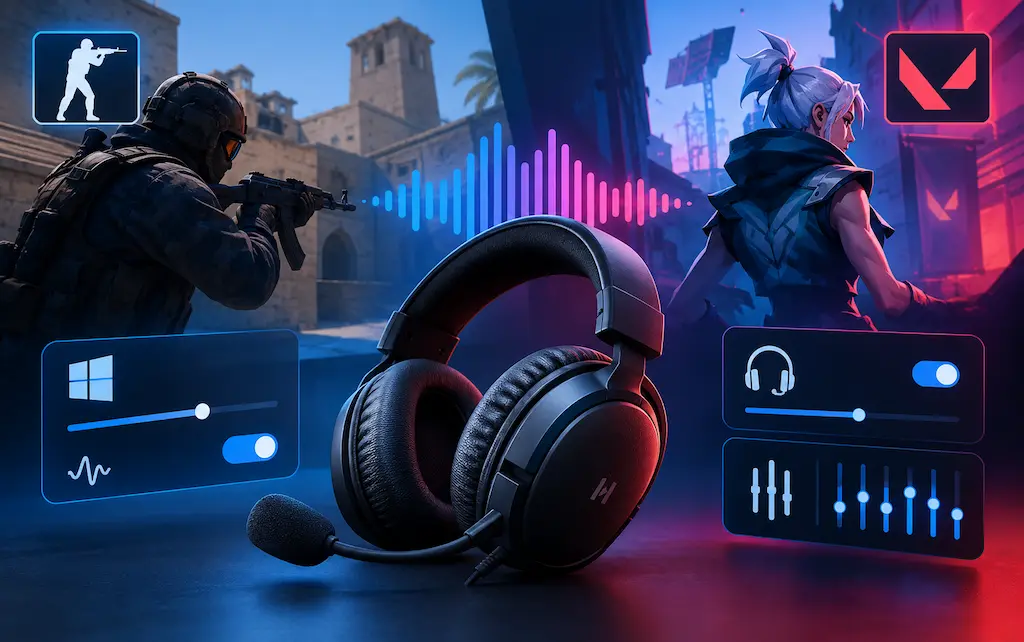
CS2 and Valorant produce a wide dynamic range of audio events in a single match: gunshots and explosions register at a much higher perceived loudness than a crouching enemy walking on carpet. Default Windows audio playback delivers all of these sounds at their native levels — meaning you either keep the master volume high enough to hear footsteps clearly (at which point gunshots and flashes are painfully loud) or you keep the volume comfortable and miss quiet footsteps entirely.
This is not a headphone quality problem. Even a $150 gaming headset running on default Windows audio settings will miss the same footsteps as a $15 IEM with Loudness Equalization active. The issue is at the signal processing level, before the audio ever reaches your headphones.
Loudness Equalization is Windows' built-in dynamic range compression. It raises the volume of quiet sounds (footsteps, distant reloads, cloth movement) and limits the volume of loud sounds (explosions, gunfire). It does not distort the audio or reduce positional accuracy — it simply narrows the gap between the quietest and loudest sounds in the mix, making footsteps more consistently audible without requiring you to crank the master volume dangerously high.
HRTF (Head-Related Transfer Function) is spatial audio processing that simulates how sound would reach your ears from different directions in 3D space. Valorant exposes this as a toggle you switch on yourself. CS2 handles it differently — its spatial audio (built on Valve's Steam Audio engine) runs automatically with no on/off switch, and what you tune instead are the EQ Profile, L/R Isolation, and Perspective Correction settings covered below. In both games, good spatial processing means footsteps above you on a mezzanine or behind a thin wall can sound distinctly different from footsteps at the same elevation — giving you more Z-axis (height) awareness than stereo panning alone provides.
Equalizer APO is a free, open-source Windows audio processor that intercepts audio at the driver level before it reaches your headphones, allowing you to build a custom frequency response that boosts the frequency range where footstep transients tend to sit most clearly (roughly 2–8 kHz) while cutting the bass bloat that cheap headsets and many gaming headsets over-emphasize, which can mask quieter high-frequency sounds.
Windows Loudness Equalization: The Free Fix
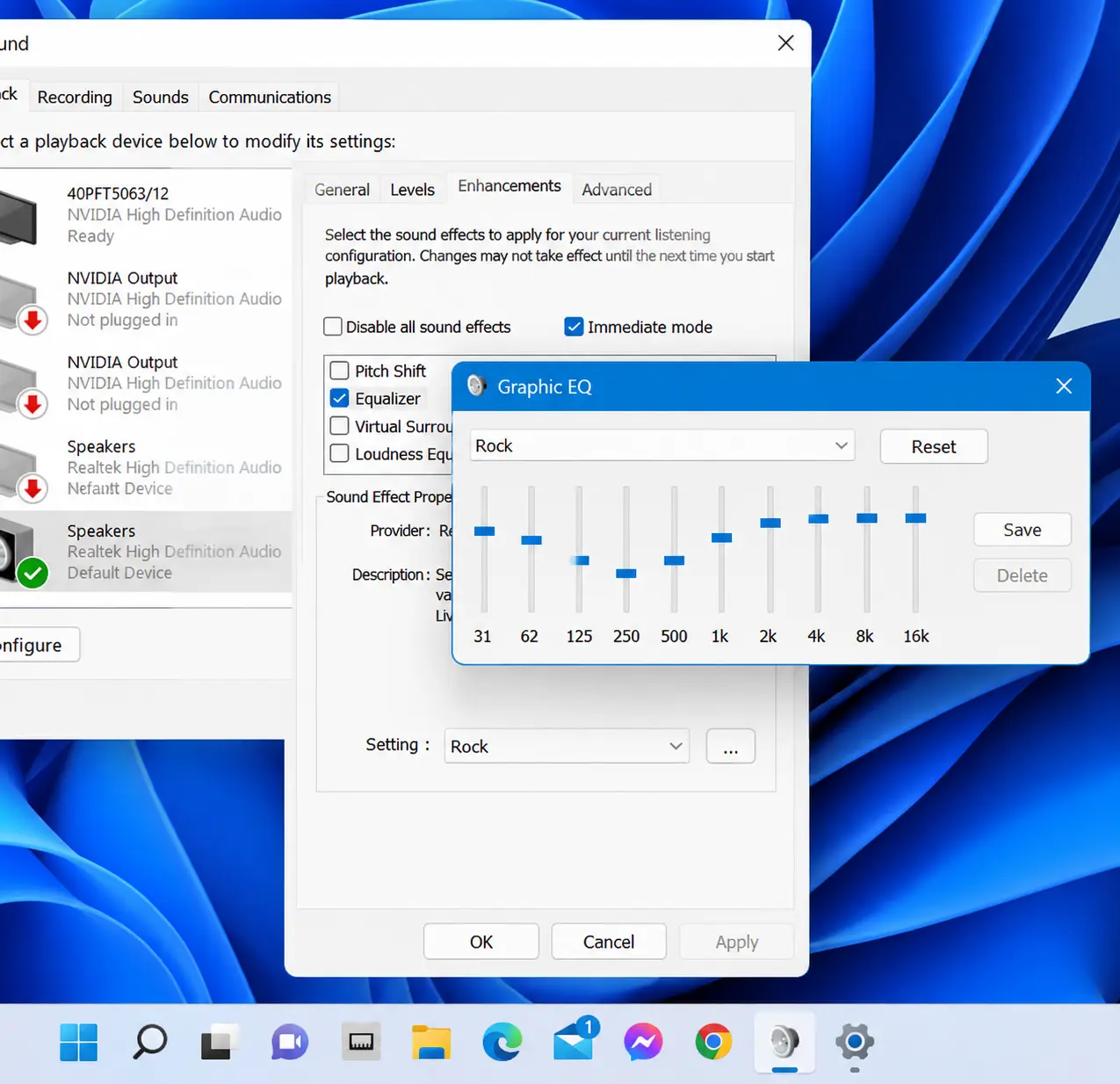
Loudness Equalization is built into every version of Windows 10 and Windows 11 and requires no software installation. It is the single highest-impact audio change you can make — enable this first before touching anything else. On Windows 11, there's an extra master switch you need to flip before the classic settings will work, so don't skip Step 1.
1On Windows 11, Turn On "Audio Enhancements" First
Windows 11 added a master toggle that gates the classic enhancement options. Open Settings (Win + I) → System → Sound → click your playback device (or 'All sound devices' → your device) → turn on 'Audio Enhancements'. If this is off, the classic Enhancements tab in the next steps may appear empty or greyed out even though it's visible. Windows 10 does not have this extra toggle — Windows 10 users can skip straight to Step 2.
2Open Your Playback Device Properties
Right-click the speaker icon in your Windows taskbar system tray (bottom-right corner) → click 'Sounds' (Windows 10) or 'Sound settings' → then scroll down and click 'More sound settings' (Windows 11). This opens the classic Sound Control Panel. Alternatively: press Windows + R → type mmsys.cpl → press Enter. In the Sound Control Panel → click the 'Playback' tab → find your headphones or headset in the list (they should be set as the Default Device — shown with a green checkmark) → double-click the device to open its Properties. If you have multiple audio output devices, right-click each one and select 'Test' to confirm which one CS2 or Valorant is actually using.
If you don't see an Enhancements tab, or the options inside it are missing or unresponsive, a proprietary audio app may be intercepting the device instead of Windows — check for Realtek Audio Console, Dolby Atmos, Nahimic, HyperX NGenuity, or a laptop/motherboard-branded audio app in your Start menu or system tray. If one is installed, look for a 'Loudness'/'Dynamic Range' style option inside that app instead — Windows' own Enhancements tab is often disabled while it's active.3Enable Loudness Equalization
In the device Properties window → click the 'Enhancements' tab → make sure 'Disable all enhancements' is unchecked → scroll through the list to find 'Loudness Equalization' → check the box to enable it → click Apply → click OK. If the Enhancements tab is missing entirely (not just empty), your audio driver is a basic Windows HD Audio driver — try updating your Realtek, ASUS SupremeFX, or Sound Blaster driver from your motherboard manufacturer's website to unlock the full enhancement suite, or use Equalizer APO instead (see below), which doesn't depend on this tab at all.
Do not enable any other enhancements simultaneously. Bass Boost, Virtual Surround, and Room Correction can each degrade positional accuracy in CS2 and Valorant. Enable Loudness Equalization only and leave all others unchecked. Also check Settings → System → Sound → your device → Spatial audio, and make sure it's set to 'Off' — Windows Sonic / Dolby Atmos for Headphones runs its own HRTF-like processing that can clash with CS2's always-on Steam Audio spatial processing and Valorant's HRTF toggle the same way third-party virtual surround software does.4Verify the Effect in Game
Launch CS2 or Valorant and join a community deathmatch or aim practice server. Walk toward a wall that has another player on the other side. With Loudness Equalization active, you should hear their footsteps clearly at a greater distance than before. Adjust Master Volume in-game to a comfortable level — you can now run a slightly lower master volume (50–65%) since quiet sounds are boosted, which also protects your ears during flashbangs and grenade explosions.
CS2 In-Game Audio Settings for Maximum Footstep Clarity
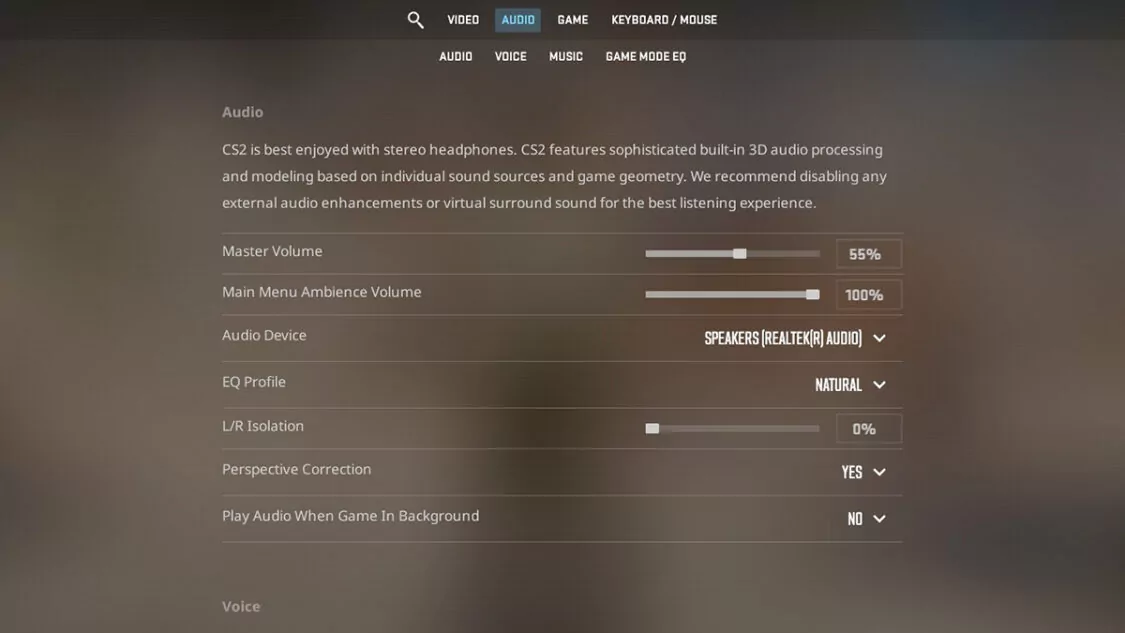
CS2 replaced CS:GO's old audio menu and console-command stack with a smaller, simpler set of controls built around Valve's Steam Audio engine. There's no separate HRTF toggle to look for — CS2's spatial audio processing runs automatically and is always on. What you actually get to tune is Audio Device, EQ Profile, L/R Isolation, and Perspective Correction, plus a handful of volume sliders. Windows Loudness Equalization still handles dynamic range compression at the OS level underneath all of this.
1Set Audio Device to Your Actual Headphones
CS2 Settings → Audio → Audio Device → select your headphones or headset by name instead of leaving it on 'Default Device'. Leaving this on Default Device is a common cause of muffled, hollow, or randomly-changed audio after a Windows update, driver update, or GPU swap — explicitly picking your device fixes it immediately for most players and costs nothing to check even if your audio already sounds fine.
2EQ Profile: Try Crisp
CS2 Settings → Audio → EQ Profile → choose between Natural, Crisp, and Smooth. Crisp pushes higher frequencies forward, which is the range footstep transients tend to sit in, and is the profile most players reach for specifically to help with footstep detection. Natural is the flatter, default-feeling response that a majority of pro players still stick with overall. Smooth leans bass-heavy and isn't used competitively. This isn't a free upgrade — Crisp also makes gunfire and other high-frequency effects louder — so A/B it against Natural for a session before committing.
3L/R Isolation: Start Around 30–50%
CS2 Settings → Audio → L/R Isolation → controls how sharply left/right audio is separated. At 100%, a sound to your right plays almost entirely in your right ear; at 0%, left and right blend together for a more natural but less explicitly-directional result. There's no real consensus among competitive players here — some run it at 0%, others prefer it cranked up — so start around 30–50% and give yourself a few sessions before pushing higher, since jumping straight to an extreme value can make close-range audio feel disorienting rather than clearer.
4Perspective Correction: On, With a Caveat
CS2 Settings → Audio → Perspective Correction → toggle Yes/No. When enabled, sound direction is corrected to match exactly where your camera is pointing rather than your character's body facing, and most competitive players keep this on. A minority turn it off because the uncorrected audio feels closer to how CS:GO used to sound — if positional audio feels 'off' to you after switching from CS:GO, this is the first setting to try toggling.
5Master Volume and Music Volume
CS2 Settings → Audio → Music Volume → set to 0 to keep buy-phase and round-end music from masking footstep transients right before or after rounds. For Master Volume, there's more than one valid approach: some players keep it moderate (roughly 50–70%) and rely on Windows Loudness Equalization to handle the dynamic range; others — including a chunk of the pro scene — run Master Volume quite low (20–50%) and instead turn up their system or amplifier volume, which keeps more headroom for Loudness Equalization to work with. Try the lower-master/higher-system approach first if flashbangs and AWP shots still feel painfully loud even with Loudness Equalization on.
6Delete Old CS:GO Console Commands If You Still Have Them
If you're carrying over an old autoexec.cfg, remove any lines with snd_headphone_pan_exponent, snd_front_headphone_position, snd_rear_headphone_position, snd_mixahead, or snd_mix_async. This whole headphone-shaping and buffer-tuning stack from CS:GO was replaced by the EQ Profile / L/R Isolation / Perspective Correction settings above, which Steam Audio now handles automatically — these old commands are either rejected by the console or silently do nothing on the current client, so they're just dead weight in your config. A few volume-related commands do still work if you want them in an autoexec.cfg: snd_gamevolume (master volume, 0.0–1.0, mirrors the Master Volume slider), snd_voipvolume (teammate voice chat volume), snd_gamevoicevolume (announcer and radio lines), and snd_mute_losefocus 0 (keeps CS2's audio playing while you're alt-tabbed).
Valorant In-Game Audio Settings for Footstep Detection
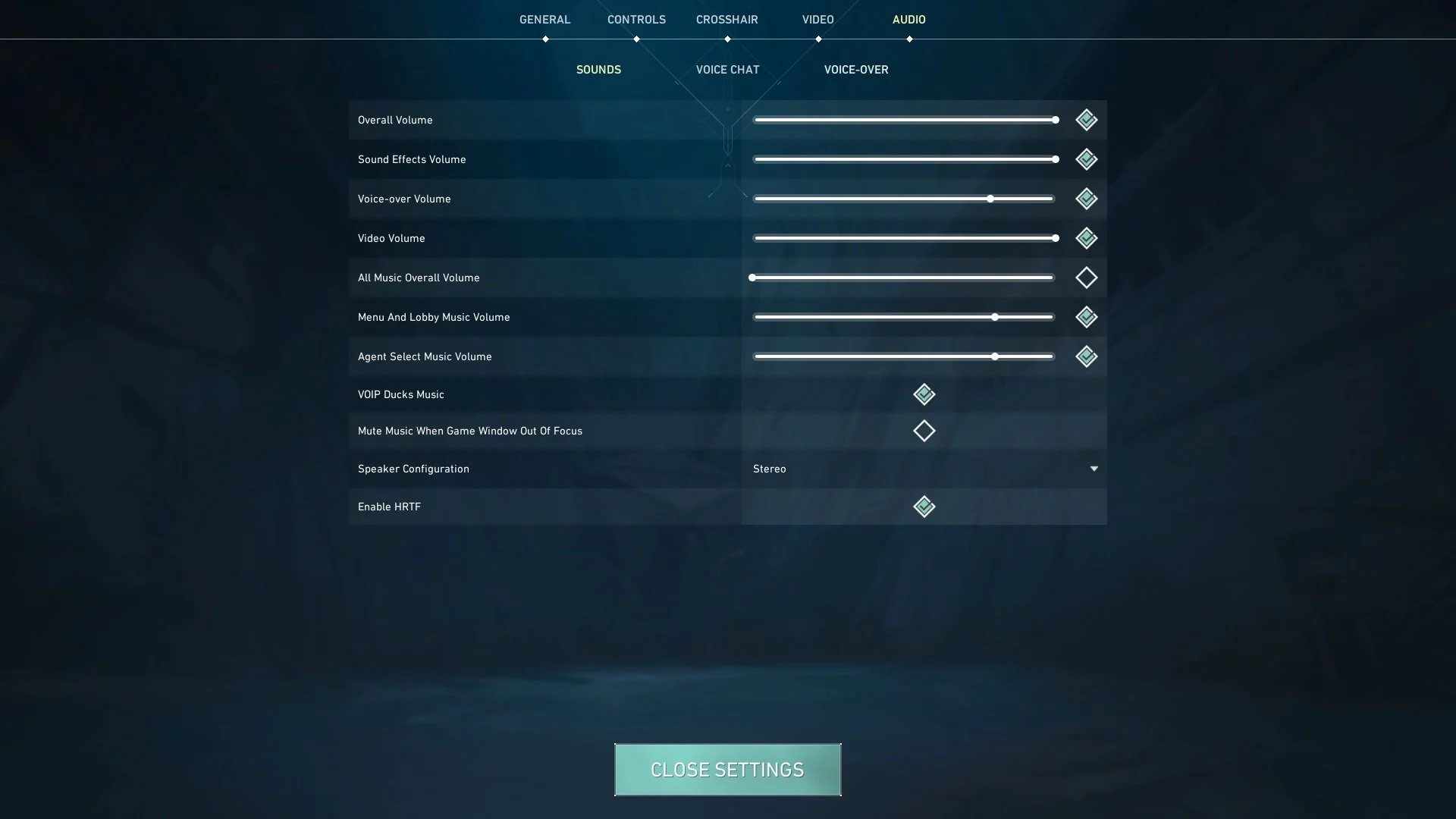
Valorant uses Unreal Engine 4's audio system with Riot's proprietary spatial audio layer. The key settings for footstep detection differ slightly from CS2 but follow the same logic: clean stereo signal, HRTF enabled, music off.
1Enable Valorant HRTF
Valorant Settings → Audio → HRTF → toggle On. Valorant's HRTF implementation provides height-plane positioning cues — useful on maps like Fracture, Split, and Haven where enemies frequently appear on rooftops, elevated platforms, or through vents directly above. Without HRTF, sounds on different vertical planes are much harder to tell apart from sounds at your own elevation, making it harder to know if a Jett is directly above you or simply nearby on the same floor.
2Master Volume and Effects Volume
Valorant Settings → Audio → Master Volume: 65–80%. Effects Volume (gunshots, ability sounds, footsteps): 80–100%. The Effects channel is where footsteps live in Valorant — keeping Effects Volume high relative to other channels helps ensure footsteps aren't drowned out by the game's internal audio mixer during heavy ability sequences (Breach tremors, Sova drones, Astra cosmic divide).
3Music and Background Audio: Off
Valorant Settings → Audio → Music Volume: 0. Background Ambience: reduce or mute if available in your client version. Map ambience (rain on Abyss, wind on Sunset) shares frequency space with footsteps and can create masking noise, particularly in the lower-mid range where soft footsteps on certain surfaces register. Reducing background ambience volume has no competitive drawback.
4Voice Chat Settings
Valorant Settings → Audio → Incoming Voice Volume: 40–60%, Push-to-Talk recommended over open mic. Teammate voice on open mic at full volume can coincide with round-start footstep sounds during eco rounds, masking the information you need most. Reduce incoming voice to a level where callouts are clearly audible but teammates don't drown out footstep cues.
Free EQ: Equalizer APO + Peace GUI (Advanced — Maximum Footstep Clarity)
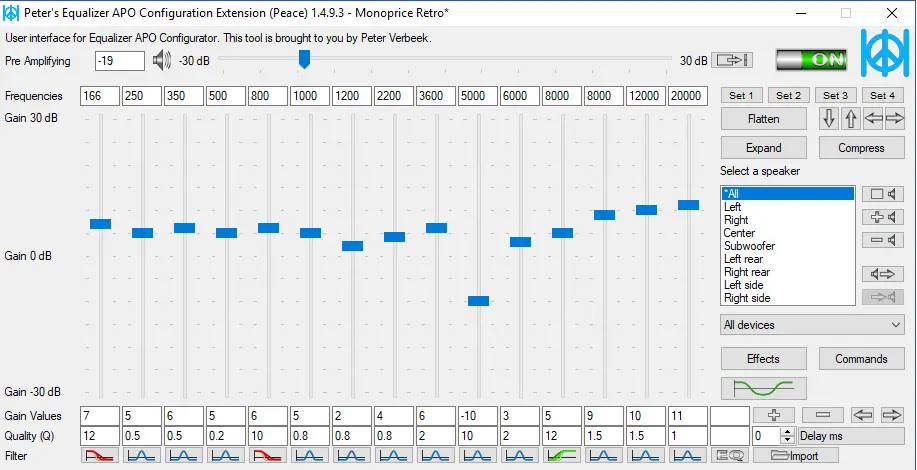
Equalizer APO is a free, open-source system-wide parametric equalizer for Windows that processes audio at the driver level before it reaches any application. Combined with the Peace GUI (a free graphical preset manager), it allows you to apply a competitive-tuned EQ profile that can meaningfully improve footstep detection on any headset — including budget gaming headsets.
What Equalizer APO Does and Why It Helps
Free — No Hardware Required
A budget gaming headset's frequency response typically looks like an inverted V with an emphasized bass shelf and a recessed treble range. This is tuned to sound impressive in a showroom — explosions rumble, music thumps. But footsteps in CS2 and Valorant are short, transient, higher-frequency sounds compared to gunfire and explosions. The bass-heavy tuning of a typical gaming headset tends to bury exactly this range. Equalizer APO lets you correct the frequency response of any headset: cut the bass shelf, boost the range where footstep transients sit most clearly (roughly 2–5 kHz), and add a gentle boost around 8–10 kHz for transient detail. The result is that footsteps can go from barely audible to noticeably crisper on the same hardware.
Download from:
- Equalizer APO: sourceforge.net/projects/equalizerapo — free, open source
- Peace GUI: sourceforge.net/projects/peace-equalizer-apo-extension — free preset manager for Equalizer APO
- Installation requires a system reboot — save your work before installing
Installation & Footstep EQ Profile Setup
Step-by-Step
Install Equalizer APO → during setup, select your headset/headphones device → reboot. Install Peace GUI → launch it → click the + icon to create a new preset → name it 'CS2 Footsteps'. In the Peace equalizer interface, add these EQ bands: Band 1: 80 Hz, Low Shelf, -5 dB (cuts bass rumble that masks footsteps) Band 2: 200 Hz, Peak, -3 dB (reduces mud in the low-mid range) Band 3: 2500 Hz, Peak, +4 dB (boosts the core footstep frequency range) Band 4: 5000 Hz, Peak, +3 dB (adds clarity to fabric and soft-surface footsteps) Band 5: 10000 Hz, Peak, +2 dB (adds transient detail to sharp footstep clicks) Treat these as a starting point rather than a fixed formula — the right amount of cut/boost depends on your specific headset's stock frequency response, so nudge each band up or down by ear. Save the preset and set it as the default. Launch CS2 or Valorant and test on a practice server.
Compatible with:
- Any wired headset or IEM connected via 3.5mm or USB (with generic USB audio driver)
- Works alongside Windows Loudness Equalization — both can be active simultaneously
- Does NOT work with Bluetooth headsets (Bluetooth audio uses its own driver stack)
If EQ APO Doesn't Seem to Apply
Troubleshooting
If the game's audio sounds unchanged after installing your EQ profile, check two things first. In Sound Control Panel → your device → Properties → Advanced tab, note the 'Default Format' (sample rate/bit depth) — a mismatch between this and what the game outputs is a common source of both EQ APO not applying cleanly and general crackling. Also check the 'Allow applications to take exclusive control of this device' checkbox on the same Advanced tab: some games requesting exclusive mode can bypass Equalizer APO's processing entirely, so leaving this unchecked is usually the safer default while troubleshooting.
Which Headphones Actually Let You Hear Footsteps Well?
Audio settings optimization has a ceiling. The right hardware pushes that ceiling further out. If you are running on a very cheap generic gaming headset, Loudness Equalization and EQ APO will help — but a budget IEM with a more neutral frequency response will often deliver cleaner positional audio with little to no EQ work. These are optional upgrades on top of the free software fixes above, not a requirement.
Competitive In-Ear Monitors (IEMs) (~$10 – $20)
Best Footstep Clarity
IEMs (in-ear monitors) fit directly into the ear canal, creating a passive noise seal that blocks out a meaningful amount of ambient noise. Micro-drivers tend to deliver fast transient response for sharp footstep clicks and reload cues without the bloated bass that plagues many gaming headsets. A well-chosen $10–$20 pair can outperform $60+ headsets for competitive CS2 & Valorant positional audio.
Top Budget Picks:
- KZ Taurus (Dual Dynamic)
- CCZ DC01 Pro
- Yeabomy AK3FILE
Budget Over-Ear Gaming Headsets (~$10 – $20)
Best with Built-in Mic
If you prefer over-ear headsets for comfort or need a built-in microphone for ranked comms, budget headsets become viable for footstep detection once you apply Loudness Equalization and cut boomy bass via an EQ APO profile.
What to look for:
- Neutral 40mm drivers (avoid bloated 50mm bass)
- Clear boom microphone for Discord & game comms
- Breathable fabric ear cushions for long sessions
* As an Amazon Associate I earn from qualifying purchases.
What These Audio Settings Deliver in CS2 & Valorant
Footsteps Audible Further Away
With Loudness Equalization active and your CS2 EQ Profile/L-R Isolation dialed in (or Valorant's HRTF enabled), footstep sounds that previously required an enemy to be quite close before becoming detectable tend to become audible noticeably further out on most map surfaces. On dust2, this can mean hearing a B apartment push through the wall from B platform earlier — giving you more reaction time before the peek occurs.
Clearer Height Differentiation on Multilevel Maps
CS2's always-on Steam Audio spatial processing and Valorant's HRTF both improve Z-axis sound positioning. On Nuke, it becomes easier to distinguish upper bombsite movement from lower bombsite movement without visually checking both. On Valorant's Split, A ramps above and A site below produce noticeably different binaural cues. This kind of height-plane information is much weaker on a flat stereo mix without spatial processing doing the work — volume alone doesn't make up for it.
More Comfortable Long-Session Listening
Loudness Equalization allows you to run a lower Master Volume (60–70%) while maintaining footstep clarity. This directly reduces peak audio levels during flashbangs, AWP shots, and HE grenade explosions — common sources of ear fatigue during long sessions. Players who switch from high-volume unequalized audio to Loudness Equalization often report being able to play longer sessions with less of the ringing or muffling that comes from sustained high-volume gaming audio.
Frequently Asked Questions
Yes, and it is one of the most commonly overlooked audio improvements available. Loudness Equalization applies dynamic range compression at the Windows audio driver level — it raises quiet sounds (footsteps, distant reloads) and limits loud sounds (explosions) before the audio reaches your headphones. The result is that footsteps that were previously hard to hear at normal listening volume become easier to pick out. Combined with CS2's Crisp EQ Profile (or Valorant's HRTF toggle) and the right Audio Device selected, it provides a noticeable improvement in enemy position detection for most players.
No. Loudness Equalization compresses dynamic range but does not affect stereo panning, frequency response, or HRTF processing. The positional information in a sound is carried by its stereo phase and timing differences between the left and right channels — Loudness Equalization does not modify either of these. The main trade-off is that audio feels less 'dramatic' — explosions do not rumble as intensely because their dynamic peaks are compressed. For competitive play, this is generally a benefit rather than a drawback.
Enable both — or in CS2's case, don't worry about it, since there's nothing to enable. Loudness Equalization is a Windows-level dynamic range compressor that raises quiet sounds. Spatial audio processing (Valorant's HRTF toggle, or CS2's always-on Steam Audio engine) is a game-level layer that adds three-dimensional positioning cues. They operate at different levels and don't overlap or interfere. The full recommended chain is: game audio (with CS2's spatial processing always active, or Valorant's HRTF turned on) → Windows audio mixer → Loudness Equalization → Equalizer APO if installed → your headphones. Make sure Windows Spatial Sound (Windows Sonic / Dolby Atmos for Headphones) is turned off, since that's a separate HRTF-like layer that can conflict with the game's own.
No. Equalizer APO intercepts audio at the audio driver (WASAPI by default) while Loudness Equalization runs at the Windows audio engine level. Both can be active simultaneously. The practical processing order is: game audio → Equalizer APO EQ → Windows audio mixer → Loudness Equalization → headphones. Running both is the maximum configuration — EQ APO corrects the headset's frequency response, and Loudness Equalization handles the dynamic range mismatch between loud and quiet game events.
Yes, with some caveats. Loudness Equalization and your game's spatial audio processing (Crisp EQ Profile in CS2, HRTF in Valorant) will provide noticeable improvements on any wired headset regardless of price. Equalizer APO can compensate for a cheap headset's bass-heavy frequency response to a significant degree. However, a $15 headset has physical driver limitations — its soundstage (the sense of audio coming from different directions) is inherently narrower than an IEM or a quality open-back headphone. Software processing cannot fully compensate for physical driver characteristics, but it will get you most of the way there.
Generally no, and it often actively hurts footstep detection. Virtual surround processing — whether from Razer Surround, SteelSeries Sonar, or Windows' own built-in Windows Sonic / Dolby Atmos for Headphones (found under Settings → System → Sound → Spatial audio) — applies a different HRTF than the game's native HRTF. Running both simultaneously can create phase cancellation and muddied positioning cues, and often adds extra processing latency and frequency coloration in the range where footstep cues live. Stick with the game's own spatial audio — CS2's always-on Steam Audio engine or Valorant's HRTF toggle — and turn off any virtual surround layer, built-in or third-party, when playing competitively.
First, on Windows 11, make sure the master 'Audio Enhancements' toggle is on (Settings → System → Sound → your device). If it's still missing, it's usually one of two things: the driver is a basic Windows HD Audio driver that doesn't support enhancement extensions, or a proprietary app (Realtek Audio Console, Dolby Atmos, Nahimic, a laptop-branded audio app) is managing the device instead and hiding Windows' own controls — check your Start menu/system tray for one of these and look for an equivalent 'loudness' or 'dynamic range' option there. If neither applies, open Device Manager → Sound, video and game controllers → right-click your audio device → Update driver → Search automatically for drivers, or get the Realtek/Conexant package from your motherboard or laptop manufacturer's site. Alternatively, install Equalizer APO instead — it applies similar dynamic-range processing without depending on this tab at all.
Open-back headphones generally provide a more natural, spacious soundstage because they let air flow through the ear cups instead of trapping reflections inside a sealed cup. The trade-off is sound leakage — open-back headphones bleed sound to your surroundings, which can be disruptive in shared spaces. Closed-back headphones and IEMs block ambient noise better, which raises the effective signal-to-noise ratio for quiet in-game sounds, at the cost of a somewhat narrower soundstage. For most competitive players in a home environment, IEMs offer a strong combination of noise isolation, tight transient response, and footstep clarity at budget price points. See our IEM guide for specific recommendations under $20.
You May Also Like
- CS2 FPS Boost Guide 2026: Best Settings for Max Performance
- Gaming Eye Strain Prevention Guide 2026: Monitor Settings, Lighting & Habits
- Best Ultra-Budget USB-C to 3.5mm Audio Adapters Under $10 for CS2 & Valorant: UGREEN vs JXMOX vs JSAUX
- Best Ultra‑Budget Gaming Headsets under $20 for CS2 & Valorant: ZIUMIER Z66 vs IMYB A36 vs Tatybo XW1
- Best Ultra-Budget IEM Earbuds under $20 for CS2 & Valorant: KZ Taurus vs CCZ DC01 Pro vs Yeabomy AK3FILE