Ergonomics Guide
Gaming Eye Strain Prevention Guide 2026: Monitor Settings, Lighting & Habits
Digital eye strain degrades reaction time and crosshair precision in competitive gaming. This 2026 prevention guide covers monitor settings, ambient lighting, and 20-20-20 habits to eliminate eye fatigue for CS2 and Valorant players.
- 8 min read
Why Gaming Causes Eye Strain: The Mechanics
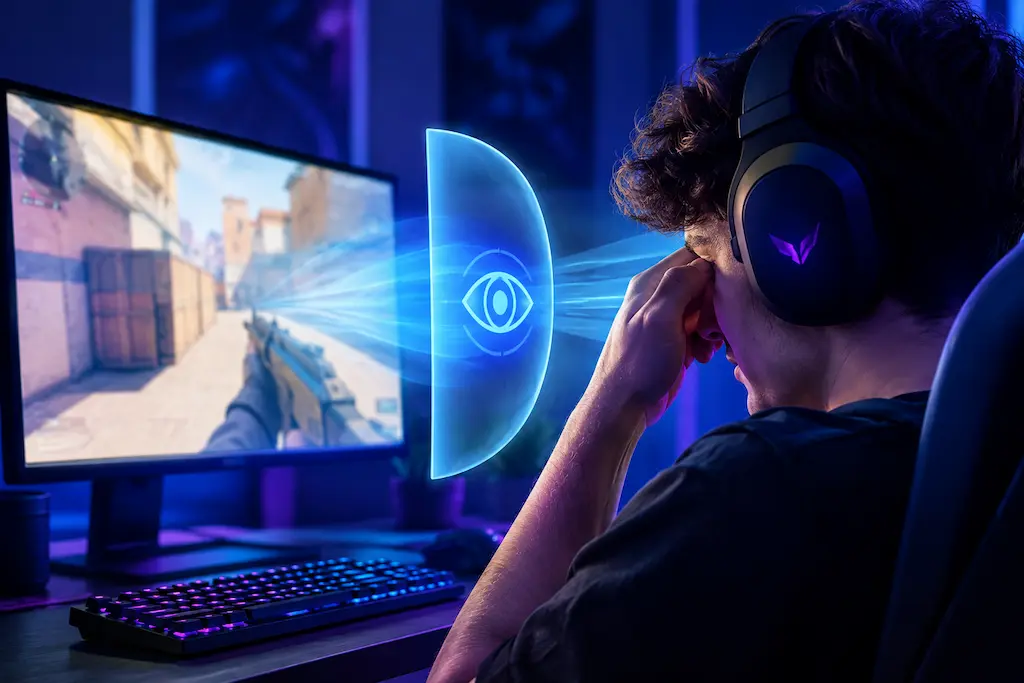
Digital eye strain, also known as Computer Vision Syndrome (CVS) in gaming, has four compounding causes unique to screen-based activity: • Reduced blink rate: Blinks drop from 15–20 down to 3–8 per minute, evaporating tear film. • Continuous accommodation: Staring at a fixed screen distance locks the ciliary muscle for hours. • Contrast mismatch: An overly bright screen in a dim room forces iris muscles to constantly cycle. • Blue light wavelength: High-energy 400–500 nm light elevates glare sensitivity and eye fatigue.
Monitor Settings: The Biggest Controllable Variable
Correct monitor calibration eliminates the two most significant physical causes of eye strain: contrast overload from excessive brightness and flicker from incorrect backlight settings. These adjustments take under five minutes.
1Set Monitor Brightness to Match Ambient Light
The single most impactful change: your monitor's white point should match peripheral ambient light.
Paper-match test:
1. Hold a white piece of paper next to the screen.
2. If the screen looks brighter than the paper, reduce brightness.
3. If the screen looks dimmer/washed out, increase brightness.
Recommended levels:
• Normal room lighting: 80–120 cd/m² (nits) — usually 50–70% brightness on OSD
• Gaming in complete darkness: 40–60 cd/m²
Many budget monitors use PWM (Pulse Width Modulation) dimming — the backlight flickers at a set frequency to simulate lower brightness. At low brightness levels on PWM monitors, this flicker (typically 480–1440 Hz) can cause headaches even if imperceptible consciously. Frequencies below 1000 Hz are considered the risk zone for sensitive users; only flicker above 1000–3000 Hz is generally safe. Check your monitor's spec sheet or a review site for 'PWM-free' or 'flicker-free' certification. DC dimming (no PWM) is significantly more comfortable for long sessions.2Reduce Contrast to a Comfortable Level
Factory contrast settings are often set to maximum to look impressive in a bright showroom. At 100% contrast, white text on a black background creates a harsh luminance ratio that fatigues the eye. In monitor OSD: reduce Contrast to 70–80%. For gaming: a contrast setting that makes in-game whites look bright but not 'glowing' is ideal. In CS2 and Valorant specifically, reducing contrast slightly can actually help enemy visibility — overly crushed blacks cause you to miss shadows and low-light details. The sweet spot is where dark areas have visible detail without the monitor looking washed out.
3Enable the Correct Color Temperature
Color temperature affects the warm/cool tone of your display:
• Daylight / well-lit rooms: 6500K (sRGB D65 standard) matches natural light.
• Evening / night gaming: Set monitor OSD to 5000–5500K (Warm preset) to reduce blue light output.
• Windows Night Light: Settings → System → Display → Night Light — set to 4000K and schedule at sunset.
4Use a Higher Refresh Rate to Reduce Flicker Perception
Beyond input lag benefits, higher refresh rates reduce perceived motion shimmer that low-refresh screens produce. At 60 Hz, fast motion in CS2 and Valorant forces the visual system to work harder to track objects. At 144 Hz or 240 Hz, motion appears continuous and tracking becomes effortless, reducing eye fatigue during gameplay.
Ambient Lighting: The Setup Change Most Gamers Overlook
The lighting environment around your monitor has as much impact on eye strain as the monitor settings themselves. Playing in a completely dark room forces your eyes to bridge an extreme luminance gap between the bright screen and the black surroundings — a biologically stressful situation that accelerates fatigue.
1Add Bias Lighting Behind Your Monitor
Bias lighting is indirect, diffuse light placed behind the monitor that reduces contrast ratio.
Setup recommendations:
• Target: Wall behind monitor should glow at 10–15% of screen peak brightness.
• Equipment: LED light strip on rear of monitor.
• Color temperature: 6500K white for daytime, 5000K for evening.
2Position Room Lighting to Eliminate Glare
Glare occurs when light sources reflect off the monitor surface into your eyes.
How to fix glare:
1. Angle the monitor to redirect reflections away from your line of sight.
2. Position desk lamps to the side (not directly in front or behind).
3. Use window blinds or blackout curtains to control daylight.
3Avoid Playing in Complete Darkness
A completely dark room maximizes the luminance ratio between screen and surroundings — the worst configuration for eye strain regardless of how low your brightness is set. Even a single dim lamp behind your setup reduces environmental contrast significantly.
Eye Care & Ergonomic Gear: What to Buy on Amazon
While monitor calibration and software filters solve half the problem, physical lighting and ergonomic equipment eliminate the environmental strain that no Windows slider can fix. Here are the highest-impact budget investments for extended gaming comfort.
Monitor Light Bar / ScreenBar (~$10 – $25)
Best for Desk Glare Prevention
Mounts directly to the top of your monitor to illuminate your desk and keyboard with zero glare or reflections on the screen. Features adjustable color temperature (warm to cool) and brightness controls to maintain comfortable ambient contrast without washing out in-game dark areas.
Why it helps:
- Asymmetrical optical design eliminates screen reflections
- Dimmable 3000K–6500K color temperature for day & night
- Powered via USB directly from PC or monitor hub
USB Bias Lighting LED Strip (~$5 – $20)
Best for Evening Sessions
Affixes to the back of your monitor and projects a diffuse glow onto the wall behind it. Greatly narrows the contrast gap between a bright screen and dark surroundings, eliminating pupil constriction cycling that causes late-night headaches.
Key features:
- 6500K true white or warm white modes
- Reduces eye fatigue significantly in dim/dark rooms
- Simple USB plug-and-play with inline controller
Preservative-Free Artificial Tears (~$10 – $15)
Physiological Relief
Blink rates drop by up to 60% during high-focus competitive FPS matches, rapidly evaporating your tear film. Preservative-free lubricating drops (like Systane Ultra or Refresh) restore moisture safely without the stinging or rebound irritation caused by preservative chemicals.
Recommended usage:
- Single-dose sterile vials prevent contamination
- Safe for daily use and contact lens wearers
- Use 1 drop before sessions and during mid-game breaks
Gas Spring Ergonomic Monitor Arm (~$20 – $50)
Best for Ergonomic Alignment
Standard monitor stands rarely let you achieve the optimal ergonomic height — with the top of the screen at eye level and 60–75cm distance. A flexible gas-spring desk mount lets you dial in the exact angle and distance in seconds while clearing huge desk space for low-eDPI mouse movement.
What to look for:
- VESA 75x75 & 100x100 compatible
- Full tilt, swivel, rotation, and height adjustment
- Frees desk space under the screen for mousepad placement
* As an Amazon Associate I earn from qualifying purchases.
Session Habits: The 20-20-20 Rule and Blink Exercises
Hardware optimization addresses the environmental causes of eye strain. Behavioral adjustments address the physiological causes — reduced blinking and sustained accommodation — that no monitor setting can fix.
1Apply the 20-20-20 Rule Consistently
The 20-20-20 rule breaks continuous eye accommodation:
• Every 20 minutes, look at an object 20 feet (6 meters) away for at least 20 seconds.
• In competitive FPS: do this at the end of every round, between maps, or during buy phases.
• Looking at distant objects relaxes the ciliary muscle.
2Perform Deliberate Blinking Every 5 Minutes
Since blink rate drops dramatically during focused gameplay, deliberate blinking is necessary to re-wet the corneal surface. Every 5 minutes during gameplay (at a natural pause — end of a round, waiting for respawn, reading the kill feed): consciously blink slowly 10–15 times. A full, slow blink (closing completely and reopening) is far more effective than a rapid partial blink at re-distributing tear film. If you experience significant dry eye symptoms, preservative-free artificial tear drops (Systane Ultra, Refresh Optive) used before a session and once or twice during extended play provide additional lubrication. These are OTC and completely safe for regular use.
3Limit Continuous Sessions to 90 Minutes
Limit continuous gaming sessions to 90 minutes maximum.
During 10-minute session breaks:
• Walk away from screens entirely (avoid looking at your phone).
• Look at varied distances across the room.
• Perform eye movement exercises (slowly moving gaze left-right, up-down).
4Optimize Screen Positioning: Distance and Height
Optimal monitor positioning:
• Distance: 50–70 cm (arm's length) for 24-inch monitors; 65–80 cm for 27-inch monitors.
• Height: Top of monitor should be at or slightly below eye level.
• Angle: Slightly tilted back (10–20 degrees) to match natural downward gaze.
Gaming on a laptop placed flat on a desk forces you to look sharply downward at a small screen close to your face — a combination of suboptimal distance, height, and small target tracking that accelerates eye fatigue more than any desktop setup. If gaming primarily on a laptop, use an external monitor on a separate stand at correct height and distance.
Blue Light Management: What Actually Helps
Blue light gets significant attention but is frequently misunderstood. Here's what the evidence shows — and which interventions are worth your time.
1Use Windows Night Light or F.lux in the Evening
Blue light from screens suppresses melatonin production — a hormone that regulates sleep onset timing. Gaming in the 2–3 hours before your intended bedtime while exposed to full-spectrum 6500K blue-heavy light delays sleep onset by 30–60 minutes from blue light exposure alone — and combined with gaming's cognitive and emotional stimulation (elevated heart rate, dopamine release, problem-solving), total sleep delay can reach 90–120 minutes. Reducing blue light output in the evening (using Windows Night Light at 3400–4000K, or F.lux which adjusts automatically based on local sunset time) mitigates the light component. The visual impact on gaming is minimal at 4000K and becomes noticeable below 3500K — find the warmest setting that doesn't affect your ability to distinguish map colors in CS2 or ability colors in Valorant. F.lux is the more sophisticated option — it smoothly transitions throughout the day rather than switching abruptly.
2Blue Light Glasses: Worth It or Marketing?
Blue-light-blocking glasses are widely marketed for gaming but the clinical evidence for their effectiveness in reducing eye strain is weak. A 2023 Cochrane Review — analyzing 17 randomized controlled trials, one of the most rigorous meta-analyses available — found that blue-light filtering lenses probably make no difference to eye strain caused by computer use compared to non-filtering lenses. The eye strain of gaming is primarily caused by reduced blinking and accommodation stress — not blue light wavelength. Blue light glasses may provide minor comfort benefits for some individuals (likely via placebo effect or general tint reducing glare) but they are not a substitute for brightness calibration, correct ambient lighting, and behavioral habits. If you already wear prescription glasses, blue-light coatings add minimal cost and zero harm — they're just not a primary solution.
3Enable Low Blue Light Mode Correctly (Without Losing Visibility)
Some gaming monitors include a 'Low Blue Light' or 'Eye Care' mode in OSD that applies a hardware-level warm tone filter. These modes vary from subtle (6000K) to aggressive (4500K). For daytime gaming: keep the monitor at sRGB 6500K — Low Blue Light modes at aggressive settings will wash out CS2's green foliage maps and make Valorant agent ability colors harder to distinguish at a glance. For evening gaming: Low Blue Light mode at the subtler setting (6000K, which appears nearly identical to standard) is beneficial without affecting color recognition. Reserve more aggressive filters for non-gaming screen use (browsing, reading).
Quick-Reference Setup: Eye Strain Prevention Checklist
Monitor Settings (Do Once, Verify Monthly)
Brightness: 80–120 cd/m² for normally lit rooms (paper-match test — screen should equal paper brightness); reduce to 40–60 cd/m² when gaming in a dark or very dimly lit room. Contrast: 70–80% of maximum. Color temperature: 6500K daytime; 5000–5500K evening (monitor hardware setting). PWM dimming: verify your monitor is flicker-free or uses DC dimming at your set brightness level — look for 'flicker-free' certification; if uncertain, use the phone camera test at low brightness. Position: top of screen at or below eye level, 60–80 cm from face (arm's length). Mode: disable Dynamic Contrast, Super Resolution, and any AI enhancement mode that adds processing latency — these also add visual noise that fatigues the eye.
Ambient Environment (Set Up Once)
Bias lighting: LED strip behind monitor, 6500K white, illuminating wall not eyes. Room lighting: dim indirect light at 20–30% brightness — no direct lights in field of view. Window glare: monitor angled so windows are to the side, not behind or in front. Dark room: eliminate completely — even a single floor lamp improves eye strain dramatically.
Session Habits (Build Into Routine)
20-20-20 rule: every 20 minutes, look 20 feet away for 20 seconds (end of round, agent select, buy phase). Blink deliberately: 10–15 slow blinks every 5 minutes during play. Session limit: maximum 90 minutes of continuous play before a 10-minute off-screen break. Evening gaming: Windows Night Light or F.lux activated from sunset — set to 3500–4000K after 9 PM as a software layer on top of your monitor's 5000–5500K hardware setting. Hydration: dry environment or dehydration accelerates tear evaporation — keep water at desk.
Frequently Asked Questions
Mild eye strain symptoms (dry eyes, minor burning) typically resolve within 30–60 minutes of ending screen exposure if you perform deliberate blinking and rest. Accommodation fatigue (blurred near vision, difficulty focusing at different distances) may persist for 1–2 hours after a long session. Severe symptoms (persistent headache, significantly blurred vision lasting hours) indicate that the cumulative strain has built up over multiple sessions — reduce session length and apply the full checklist in this guide for several days before long sessions resume.
Yes, significantly. IPS panels have better off-axis color stability and less backlight bleed variation, making them more comfortable at correct brightness for long sessions. TN panels have worse viewing angles and more aggressive backlight non-uniformity, which increases local contrast variation that fatigues the eye. VA panels have the highest static contrast ratio but can have slow pixel response that causes smearing on motion — this ghosting effect can increase visual effort to track objects. OLED panels produce the best uniformity (perfect blacks, no backlight) and fastest pixel response — however, most OLED monitors use PWM dimming, and many do so at problematic low frequencies (240–480 Hz) at lower brightness levels, which can cause headaches in sensitive users. Check your specific OLED model: look for high-frequency PWM (1000 Hz+) or DC dimming certification. OLEDs that implement this correctly are the most comfortable panels for extended use. For eye strain reduction, panel priority: OLED (flicker-free models) > IPS > VA > TN.
Yes, for two reasons. First, the smoother motion at 144Hz significantly reduces the visual effort required to track fast-moving objects. At 60Hz, rapid mouse movements in CS2 and Valorant produce visible motion blur and judder between frames — your visual system has to work harder to interpolate object positions, which contributes to eye fatigue over long sessions. At 144Hz, motion is smooth enough that tracking becomes effortless. Second, if your monitor uses PWM backlight dimming and you are sensitive to it, a higher refresh rate monitor is more likely to be a modern panel with DC dimming or high-frequency PWM — reducing an unrelated but concurrent source of eye strain. Note: refresh rate itself is not the same as PWM flicker — these are independent monitor characteristics. If eye fatigue is a significant issue and you are on a 60Hz monitor, upgrading to 144Hz is one of the highest-value ergonomic improvements you can make for long-session gaming.
Yes, if symptoms are severe or persistent. Eye strain from digital screens is usually self-limiting and resolves with correct habits and settings. However: if you experience persistent blurred vision that doesn't clear within 2 hours of ending a session, frequent headaches behind the eyes despite applying the adjustments in this guide, or if one eye strains noticeably more than the other — these are indications to see an optometrist. Uncorrected refractive errors (slight myopia, astigmatism) that are subthreshold for normal daily vision can become symptomatic under the sustained focus demands of competitive gaming. A full eye exam including a prescription check is worthwhile if eye strain is a recurring problem despite correct setup.
For gaming in a dark room: 40–60 cd/m² (nits) is the appropriate target. At this level, the monitor's white output approximately matches a dimly lit surface under low ambient light, minimizing the pupil constriction-dilation cycling that drives fatigue. Most monitors achieve this at 15–30% of their brightness slider maximum. If your monitor does not show nit values: reduce brightness until white objects in-game appear clearly visible but not 'glowing' against the dark room. Adding bias lighting behind the monitor is strongly recommended when gaming in a dark room — it reduces the required contrast adjustment and keeps ambient brightness at a more comfortable level.
You May Also Like
- How to Hear Footsteps in CS2 & Valorant: Loudness Equalization + Audio Settings Guide
- How to Apply Thermal Paste: Fix CPU Throttling & FPS Drops in CS2 & Valorant
- Best Ultra-Budget Monitor Arms Under $20 for CS2 & Valorant (2026): Bracwiser vs HUANUO vs Utopia Home
- Best Ultra‑Budget Gaming Chair under $100: Kslysuty vs GTPLAYER vs N‑GEN GAMING
- Best Ultra-Budget Footrests for CS2 & Valorant (2026)