Performance Guide
CS2 FPS Boost Guide 2026: Best Settings for Max Performance
Dropping frames in CS2 is a competitive disadvantage. This step-by-step CS2 FPS boost guide covers the best video, launch, and Windows settings for low-end and mid-range PCs to achieve maximum performance and eliminate input lag.
- 12 min read
Why FPS Matters More in CS2 Than in Other Games
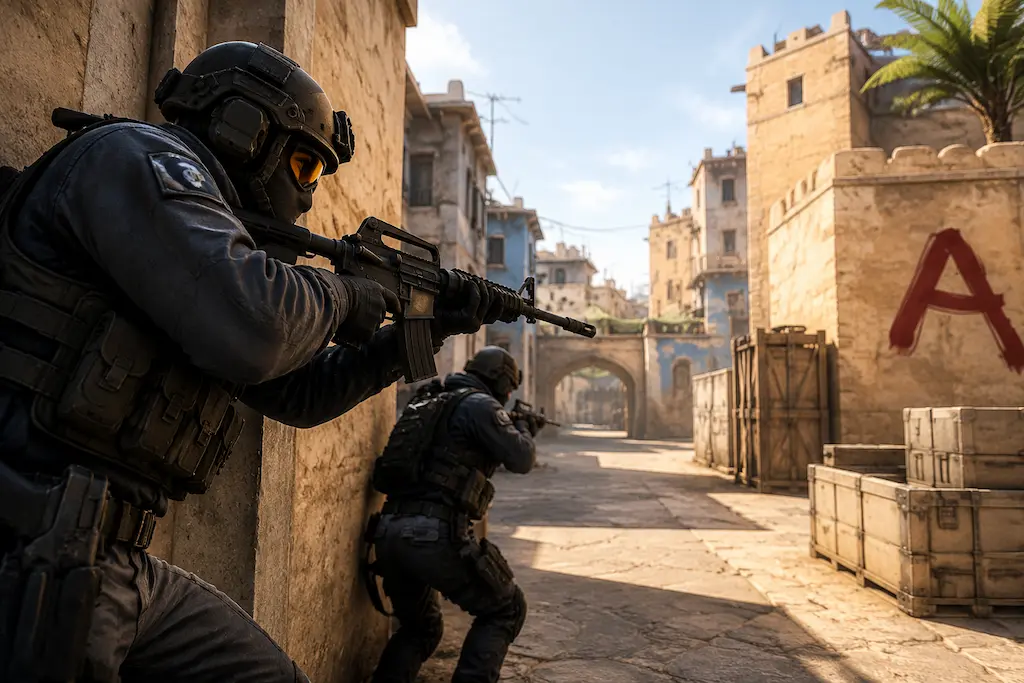
Counter-Strike 2 runs on the Source 2 engine and utilizes Valve's sub-tick architecture across all servers. Unlike older game engines, CS2 records player inputs like shooting and movement between ticks. However, sub-tick input sampling is still directly bound to your client framerate: higher FPS reduces system input latency, making your mouse movement smoother and your shots register faster. To achieve maximum performance and competitive responsiveness, players target 200–300+ FPS even on 144Hz monitors. Applying the best CS2 settings for FPS in this step-by-step guide is essential to eliminate frame drops and get more FPS on both low-end and mid-range PCs.
In-Game Video Settings: Best CS2 Settings for FPS
Navigating to Settings → Video in Counter-Strike 2 is the most effective way to boost your CS2 FPS. Configuring your video, launch, and Windows settings properly allows you to maximize performance without sacrificing visual clarity.
1Resolution: 1280×960 (4:3) or 1920×1080 (16:9)
Resolution is the single biggest FPS multiplier:
• 4:3 Stretched (1280x960 / 1024x768): Renders ~40% fewer pixels — boosts FPS by 30–60% on budget hardware.
• Native 16:9 (1920x1080 / 1600x900): Best for maximum visual clarity if your GPU can hold 200+ FPS.
Always use Fullscreen mode — Windowed and Borderless Windowed add up to 20ms of display latency.2Display Mode: Fullscreen
Grants CS2 exclusive GPU control, bypasses Windows DWM compositor, and reduces input latency to the absolute minimum.
3Global Shadow Quality: Very Low
Shadows are the second-largest GPU cost. Very Low keeps enemy silhouettes visible while freeing up massive GPU capacity.
4Model / Texture Detail: Low
Reduces VRAM usage and GPU memory bandwidth load. Low texture quality prevents VRAM saturation and stuttering on 4–6GB GPUs.
5Shader Detail: Low
Simplifies surface reflections and complex materials. Boosts FPS by 10–20% on integrated and budget graphics cards.
6Particle Detail: Low
Reduces smoke particle density for better FPS during heavy grenade exchanges and clearer smoke edge visibility.
7Ambient Occlusion: Disabled
Purely visual effect with no competitive value. Disabling it saves 10–15% FPS on budget and integrated GPUs.
8High Dynamic Range: Performance
Disables per-frame HDR tone mapping calculations to save GPU render time.
9FidelityFX Super Resolution (FSR): Disabled
Keep FSR Disabled for maximum enemy clarity. Native resolution at low settings is always clearer than FSR upscaling.
If enabled on extremely weak hardware, use Quality mode. Performance mode introduces distant blurring.10V-Sync: Disabled
Unconditionally disable V-Sync to eliminate render buffer latency and mouse input delay.
Best CS2 Launch Options for FPS
Right-click CS2 in Steam Library → Properties → General → Launch Options. Using valid launch options is a quick step-by-step way to optimize game startup. Enter the following parameters:
Recommended Launch Options
Copy & Paste
-novid -nojoy Recommended commands: • -novid: Skips the Valve intro animation for faster game loading. • -nojoy: Disables joystick system initialization, freeing up CPU cycles and memory. Note: Legacy CS:GO launch options (-high, -threads, -tickrate 128, +mat_queue_mode) are deprecated or counter-productive in CS2.
What NOT to add (CS:GO legacy commands):
- -high (causes stutters on Windows 10/11 multi-core CPUs)
- -threads (CS2 manages CPU threads automatically)
- -tickrate 128 (CS2 enforces 64 sub-tick architecture on all servers)
Console Commands That Directly Boost FPS
Enable the developer console in Settings → Game → Enable Developer Console. Open it with the tilde key (~) to execute commands that maximize performance:
1fps_max 0
Removes the FPS cap entirely, allowing your GPU and CPU to deliver maximum performance and framerates. If you experience GPU overheating or coil whine, set fps_max 400 instead of 0.
2cl_hud_telemetry_frametime_show 2
Enables CS2's native telemetry overlay for monitoring live frametime and FPS performance in real time. This replaces older CS:GO netgraph commands and helps you verify your CS2 FPS boost results accurately during matches.
3engine_low_latency_sleep_after_client_tick 1
Optimizes frame pacing between the CS2 client engine tick and GPU frame rendering, reducing input latency on systems struggling with frametime spikes.
Windows Settings That Affect CS2 FPS
Software settings outside the game have a real impact on CS2 performance. These changes are safe, reversible, and can add 10–30% to your framerate on budget hardware.
1Set Windows Power Plan to High Performance
Open Start → search 'Power plan' → Choose a power plan → Select High Performance (or Ultimate Performance).
Prevents CPU/GPU downclocking during brief idle moments to eliminate microstutters.
On laptops, High Performance mode increases heat output and drains battery. Plug in before switching.2Disable Xbox Game Bar and Game Mode
Disable background overlays:
• Xbox Game Bar: Settings → Gaming → Xbox Game Bar → Toggle OFF
• Game Mode: Settings → Gaming → Game Mode → Toggle OFF
Prevents background service overhead and CPU scheduling conflicts in CS2.
3Disable Hardware-Accelerated GPU Scheduling (HAGS)
Search 'Graphics settings' in Windows → Toggle Hardware-accelerated GPU scheduling OFF.
Reduces input latency in CS2 by 1–3ms and fixes frame pacing issues on GTX / older RTX cards.
On RTX 40-series/RX 7000-series, test both ON and OFF if using DLSS/FSR Frame Gen features.4Set CS2 Process Priority to High
Automatically handled by `-high` launch option.
Manual verification: Task Manager → Details → cs2.exe → Right-click → Set priority → High.
5Update GPU Drivers
Keep drivers updated:
• NVIDIA: Open GeForce Experience / NVIDIA App → Check for Game Ready Driver.
• AMD: Open AMD Software: Adrenalin Edition → Check for recommended driver.
Fixes CS2-specific bugs and boosts FPS by 5–15% on newer patches.
NVIDIA Control Panel Settings for CS2
If you have an NVIDIA GPU, right-click the desktop → NVIDIA Control Panel → Manage 3D Settings → Program Settings → Add CS2. Apply these settings specifically to CS2:
1Low Latency Mode: Ultra
Low Latency Mode (formerly 'Null Rendering Queue') reduces the number of frames the GPU pre-renders before sending them to the display. Ultra mode forces the GPU to queue only one frame at a time — the lowest possible render latency. This directly reduces the time between your physical mouse movement and what you see on screen. Essential for competitive CS2.
2Power Management Mode: Prefer Maximum Performance
Prevents the GPU from downclocking during frame rate fluctuations. In CS2, FPS can swing from 400 to 120 in a fraction of a second depending on the scene. Without this setting, the GPU may drop its clock speed during simpler frames and fail to ramp back up fast enough for complex frames — causing microstutters.
3Texture Filtering Quality: High Performance
Sets anisotropic filtering to its fastest mode. The visual difference in CS2's competitive textures is negligible, and this setting frees up GPU memory bandwidth that can be redirected toward higher framerates.
4Vertical Sync: Off
Set V-Sync to Off here as well as in-game. The NVIDIA Control Panel setting acts as a global override — turning it off here ensures it cannot be accidentally re-enabled by a game setting.
AMD Software: Adrenalin Edition Settings for CS2
If you have an AMD GPU, open AMD Software: Adrenalin Edition → Gaming tab → find or add Counter-Strike 2. Apply these settings specifically to CS2:
1AMD Anti-Lag 2: On
Anti-Lag 2 synchronizes CPU and GPU frame pacing to reduce the delay between your input and what appears on screen — the AMD equivalent of NVIDIA's Low Latency Mode. It requires driver version 24.6.1 or newer and must also be enabled in CS2's in-game video settings to take effect.
Use Anti-Lag 2 only. The older 'Anti-Lag+' feature from earlier drivers is deprecated — stick to Anti-Lag 2 on current drivers.2Radeon Chill: Off
Chill dynamically lowers your framerate based on mouse movement to save power, throttling FPS during calm moments and ramping up during action. In competitive CS2 this works against you — it can introduce stutters right when you need consistent frame times, like peeking or spraying.
3Radeon Boost: Off
Boost dynamically lowers render resolution during fast camera movement to maintain FPS. It trades image clarity for frames during the exact moments — flicks and turns — when you need to read enemy silhouettes clearly. Leave it off for competitive play.
4Texture Filtering Quality: Performance
Same rationale as the NVIDIA setting — biases anisotropic filtering toward speed over precision. The visual difference in CS2 is negligible, but it frees up GPU memory bandwidth.
5Wait for Vertical Refresh: Always Off
The AMD equivalent of forcing V-Sync off at the driver level. This acts as a global override so V-Sync can't be silently re-enabled by an in-game setting.
Expected FPS Improvements After Applying All Settings
Budget PC (i3 / Ryzen 3 + GT 1030 / RX 550)
Expect 60–120 FPS at 1280×960 Low settings after applying all optimizations. Without these settings, the same hardware often struggles to hold 45–60 FPS. The Windows power plan, process priority, and fps_max 0 changes have the largest impact on CPU-limited budget builds.
Mid-Range PC (i5 / Ryzen 5 + RTX 3060 / RX 6600)
Expect 200–350 FPS at 1920×1080 Low settings. These systems are often GPU-limited at medium settings — dropping to Low across the board and disabling HAGS typically adds 50–100 FPS. Low Latency Mode: Ultra (NVIDIA) or Anti-Lag 2 (AMD) shaves another 5–15ms off input lag.
Any PC: Stutter Reduction
Stutters in CS2 are often caused by VRAM overflow, Game Mode interference, or the Balanced power plan throttling CPU clocks. Disabling Game Mode + switching to High Performance power plan eliminates the majority of stutter complaints without touching the in-game settings at all. Apply these first if FPS is adequate but the game feels inconsistent.
Frequently Asked Questions
Yes — significantly. Resolution has the largest single impact on GPU workload of any CS2 setting. Dropping from 1920×1080 to 1280×960 reduces the rendered pixel count by over 40%, which translates directly to higher framerates. Many professional players use 1280×960 or 1024×768 for this reason. The trade-off is a slightly softer image, but enemy models are still clearly visible and identifiable at all relevant combat distances.
1280×960 stretched (4:3) is the most common choice among professionals for maximum FPS and slightly wider player models on the horizontal axis. If you prefer the native 16:9 look, 1280×720 or 1600×900 at Low settings gives you significantly more FPS than 1920×1080 while keeping widescreen proportions. 1920×1080 is the right choice only if your hardware already maintains 200+ FPS comfortably.
Some do, some don't. -novid and -nojoy are valid and safe. Many CS:GO-era options like -high, -threads, -tickrate 128, and various +mat_ commands no longer apply in CS2 — the Source 2 engine handles these differently. Stick to the options listed in this guide and avoid adding long lists of legacy commands copied from CS:GO forums.
No, for competitive play. Both DLSS (in any mode) and FSR introduce image softening that makes distant enemies harder to identify. In CS2, where reliably spotting an enemy head at 50 meters can determine the outcome of a round, native resolution at Low settings always provides better visual clarity than upscaling from a lower resolution. The FPS cost of native rendering is worth it.
High average FPS with stuttering is typically caused by one of three things: (1) Windows Game Mode interfering with CPU scheduling — disable it. (2) VRAM overflow causing textures to stream from system RAM — lower texture quality. (3) The Balanced power plan throttling CPU clocks during brief low-load frames — switch to High Performance. In most cases, disabling Game Mode alone resolves the stutter.
On most setups, disabling HAGS has a neutral or slightly positive effect on average FPS, and a clearly positive effect on input latency and frame pacing. The exception is setups using DLSS Frame Generation (RTX 40-series and newer) — Frame Generation may require or benefit from HAGS. If you don't use Frame Generation, disable HAGS for lower input lag.
AMD Anti-Lag 2, found in AMD Software: Adrenalin Edition under the Gaming tab for CS2. It requires driver 24.6.1 or newer and must be enabled both in the driver and in CS2's in-game video settings. Avoid the older 'Anti-Lag+' feature from earlier drivers — Anti-Lag 2 is the current, supported version.
Yes. Every setting in this guide is reversible and requires no software installation or reinstall. Video settings are changed in-game, launch options are set in Steam, Windows settings are in the Control Panel and Settings app, and NVIDIA/AMD settings are in their respective control panels. The only optional step is installing updated GPU drivers, which is a safe routine update.
You May Also Like
- CS2 Mouse Settings Guide 2026: DPI, eDPI & Sensitivity Explained
- How to Hear Footsteps in CS2 & Valorant: Loudness Equalization + Audio Settings Guide
- How to Set Up 4:3 Stretched in CS2: No Black Bars + FPS Boost (NVIDIA, AMD & Intel)
- How to Apply Thermal Paste: Fix CPU Throttling & FPS Drops in CS2 & Valorant
- Best Ultra-Budget 240Hz Monitors Under $120 for CS2 & Valorant (2026)