Performance Guide
How to Reduce Input Lag in CS2 & Valorant: Complete Guide
Input lag — the delay between moving your mouse and seeing it reflected on screen — is not the same as framerate. If you want to learn how to reduce input lag in CS2 and how to reduce input lag in Valorant, this complete guide walks through every layer of the signal chain: competitive in-game settings, GPU features (Nvidia Reflex, AMD Anti-Lag 2), mouse polling rate, monitor sync and overdrive, and Windows latency tweaks — giving you an optimized low-latency configuration for both titles.
- 12 min read
Input Lag vs FPS — Why They're Not the Same Thing
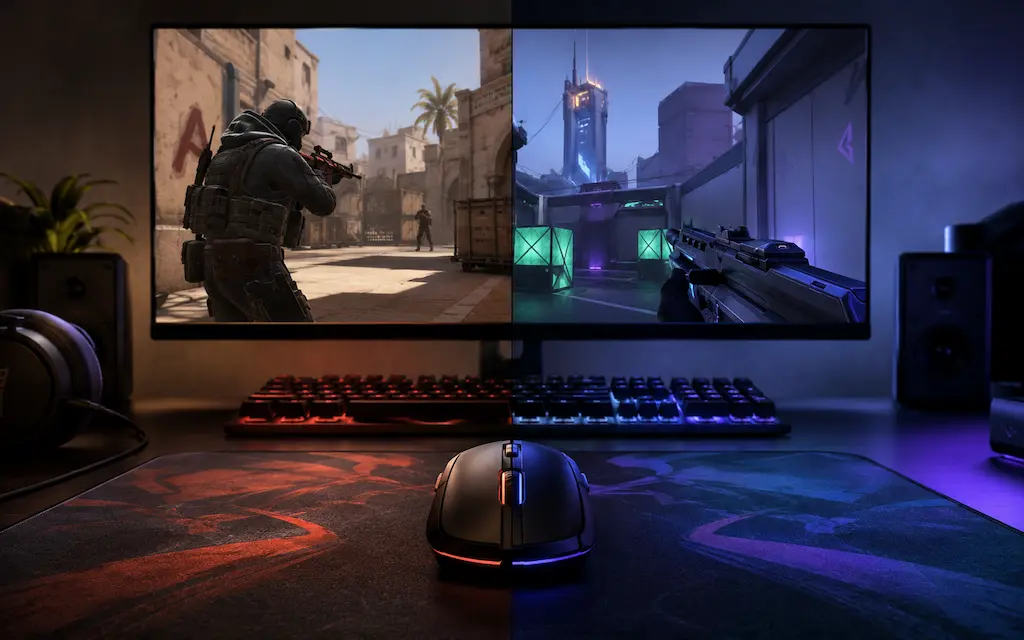
Understanding the input lag vs fps difference is essential for competitive gaming. Input lag (system latency) is the total time between a physical input — moving your mouse, pressing a key — and the moment the resulting frame appears on your monitor. Framerate (FPS) measures how many frames your GPU renders per second. These two numbers are related but not equivalent, and conflating them is the root cause of most failed optimization attempts.
The render pipeline has multiple stages, each adding latency: the CPU samples input and simulates the game world, the GPU renders the frame, the frame waits in a queue before the display driver presents it, and the monitor draws the frame from top to bottom (scan-out). The largest and most controllable source of latency in this chain is the render queue — also called the pre-render queue or flip queue — which holds completed frames waiting to be displayed. Without active management, this queue can buffer 2–4 frames, adding 15–50ms of input lag even at high framerates.
The second most common latency source is GPU-bound rendering: when your GPU cannot keep up with your target framerate, it falls behind and frames pile up in the render queue. This is why uncapped framerates with no sync often feel more responsive than V-Sync — V-Sync hard-caps the queue at exactly one frame, but forces the GPU to wait for monitor refresh timing, which adds exactly one refresh interval of latency. The goal of every technique in this guide is to reduce latency in CS2 and reduce latency in Valorant by keeping the render queue short and preventing the GPU from becoming a bottleneck.
In-Game Settings That Actually Reduce Input Lag
Several settings inside CS2 and Valorant directly affect how frames are queued and delivered to your monitor. Applying the best input lag CS2 settings and Valorant input lag fix configurations is the highest-impact change you can make without any hardware investment.
1Choose the Right Display Mode (Exclusive Fullscreen vs Borderless)
Where to configure:
• CS2: Video Settings → Display Mode.
• Valorant: Settings → Video → Display Mode.
• Exclusive Fullscreen vs Borderless:
- Flip Model Presentation: Both CS2 and Valorant use the DXGI flip model on Windows 10/11, making latency in Borderless Windowed nearly identical to Exclusive Fullscreen.
- Exclusive Fullscreen Benefits: Best for G-Sync/FreeSync control and preventing frame pacing inconsistency.
- Borderless Benefits: Faster Alt-Tab switching and seamless multi-monitor / streaming setup.
Exclusive Fullscreen may interfere with OBS window capture or overlay tools. Borderless is recommended for streamers with virtually zero latency penalty.2Cap Your Framerate Correctly (FPS Cap Input Lag Reduction)
How to set up:
• With Nvidia Reflex / AMD Anti-Lag 2: Let the driver manage capping automatically.
• Without Reflex (GPU-bound): Cap FPS slightly below max output to prevent render queue build-up.
• Without Reflex (CPU-bound): Cap to 2–3× refresh rate (e.g. 300–360 FPS for a 144Hz monitor).
• CS2: Set fps_max in developer console or launch options.
• Valorant: Settings → Video → Max Framerate.
Setting your FPS cap too low without adaptive sync can cause frame stuttering, increasing perceived latency.3Disable V-Sync in Both Game and Driver
How to disable:
1. In-game: Video Settings → V-Sync → Off.
2. Nvidia Control Panel: Manage 3D Settings → Vertical Sync → Off.
3. AMD Software: Gaming → Vertical Sync → Off.
• Impact: Removes 1 full refresh interval of latency (6.9ms at 144Hz, 4.2ms at 240Hz) plus frame queue delays.
4Set Texture Detail and Shadow Quality Low (CPU Headroom)
Recommended settings:
• CS2: Shadows → Very Low, Global Shadow Quality → Low.
• Valorant: Material Quality → Low, Detail Quality → Low.
• Impact: Reduces CPU draw-call generation time, preventing CPU bottlenecks and input delay.
Nvidia Reflex & AMD Anti-Lag 2: What They Do and When to Use Them
Nvidia Reflex and AMD Anti-Lag 2 are the most effective single-setting changes for reducing system latency available to most players. Both work by coordinating CPU and GPU workloads to minimize the render queue depth — the primary source of input lag in GPU-rendering pipelines. Coverage differs by game, though: Nvidia Reflex is supported in both CS2 and Valorant, but AMD Anti-Lag 2 currently requires direct developer integration and, as of this writing, only CS2 has that integration — Riot has not added Anti-Lag 2 support to Valorant. AMD GPU users on Valorant are limited to the legacy driver-level Radeon Anti-Lag (smaller effect, no in-game toggle needed) plus the Windows and peripheral optimizations covered later in this guide.
1Enable Nvidia Reflex in CS2 and Valorant (Nvidia Reflex CS2 / Valorant)
Where to enable:
• CS2: Options → Video → Advanced Video → NVIDIA Reflex Low Latency → On (or On + Boost).
• Valorant: Settings → Video → NVIDIA Reflex Low Latency → On (or On + Boost).
• On vs On + Boost:
- On: Prevents GPU render queue from exceeding 1 frame (15–35% latency drop).
- On + Boost: Keeps GPU clocks maxed out when queue is empty (ideal for mid-range GPUs like RTX 3060/4060).
Reflex is most effective when GPU-bound. If CPU usage is the main bottleneck, lower CPU shadow settings first.2Use AMD Anti-Lag 2 in CS2 (AMD GPU Users — CS2 Only)
How to enable:
1. AMD Software: Adrenalin Edition → Gaming → Anti-Lag 2: On.
2. In CS2: Confirm Anti-Lag 2 toggle is On in the Advanced Video settings.
• Supported hardware: AMD RDNA-generation GPUs (RX 5000 / 6000 / 7000 series and newer).
• Impact: Controls CPU frame pacing to eliminate GPU queue build-up in GPU-bound scenarios.
• Valorant: Anti-Lag 2 has no effect here — Riot hasn't integrated the AMD SDK, so the toggle (if present in your driver) does nothing in this game. Use the legacy driver-level Radeon Anti-Lag instead, or rely on Nvidia Reflex if you switch to an Nvidia GPU.
3Measure Your System Latency with Reflex Analyzer (Optional)
Measurement options:
• Hardware: Reflex Latency Analyzer built into G-Sync Ultimate monitors + Nvidia FrameView.
• Software estimation: CapFrameX or RTSS overlay for frametime variance analysis.
Peripheral Latency: Mouse, Keyboard, and the Chain That Adds Up
Your mouse and keyboard each add latency to every input before it even reaches your PC. These delays are small individually but compound with system latency — and most players have at least one peripheral running at a suboptimal configuration.
Magnetic Switch Rapid Trigger Keyboard (~$40 – $150)
Zero Debounce Delay
Magnetic Hall Effect switches eliminate traditional 5–15ms debounce delays and enable Rapid Trigger — keys reset the instant you lift your finger. In CS2, this produces near-instantaneous counter-strafes and stopped-movement precision.
Competitive edge:
- Adjustable actuation points (0.1mm–4.0mm)
- Rapid Trigger for instant counter-strafe stopping
- 1000Hz–8000Hz polling rate with analog precision
1000Hz–4000Hz Lightweight Gaming Mouse (~$20 – $50)
1000Hz Ready
A competitive mouse with a modern optical sensor (PixArt 3395 or equivalent) delivers sub-millisecond motion reporting with zero smoothing or angle snapping at 1000Hz+. Lightweight shells (under 60g) reduce physical hand inertia. Note: 1000Hz already covers the polling rate that matters for CS2 and Valorant — the 4000Hz mode some of these mice support is a nice-to-have for very high-level players, not a setting most users will notice in practice.
Key specs:
- Native 1000Hz (the polling rate that actually matters here)
- Flawless optical sensor with zero smoothing
- Low click latency with optical or binned switches
VESA-Certified DisplayPort 1.4 / 2.1 Cable (~$5 – $20)
Zero Signal Dropouts
Cheap or unshielded monitor cables struggle with high refresh rate bandwidth (144Hz–360Hz), manifesting as black screen flashes, DSC sync drops, or increased frame presentation variance. A VESA-certified cable ensures full bandwidth delivery without signal corruption.
Key features:
- VESA certified 32.4 Gbps (DP 1.4) or 80 Gbps (DP 2.1)
- Supports 1080p 240Hz/360Hz and 1440p 240Hz with G-Sync/FreeSync
- Heavy shielding prevents electromagnetic interference
* As an Amazon Associate I earn from qualifying purchases.
1Set Mouse Polling Rate to 1000 Hz (Mouse Polling Rate Input Lag Fix)
Polling rate comparison:
• 125 Hz: Reports every 8ms (adds up to 7ms latency penalty).
• 1000 Hz: Reports every 1ms (sweet spot for CS2 and Valorant).
• 4000/8000 Hz: Sub-millisecond reports (requires high-end CPU to handle interrupt overhead; gains beyond 1000 Hz are real but below what most players will actually perceive).
• Action: Open mouse software (Logitech G Hub, Razer Synapse, SteelSeries GG) and set polling rate to 1000 Hz.
2Use a Wired Connection for Mouse and Keyboard
Connection types:
• 2.4 GHz Wireless (Logitech LIGHTSPEED, Razer HyperSpeed): ~1ms latency, identical to wired.
• Bluetooth: 7–12ms protocol latency (AVOID for competitive gaming).
• Wired USB: Zero uncertainty, zero interference risk.
3Use a Keyboard with High Polling Rate and Fast Switch Actuation
Key tech specs:
• Magnetic / Optical Switches (Wooting Lekker, Razer Optical): Zero debounce delay.
• Traditional Mechanical Switches: 5–15ms firmware debounce delay.
• Rapid Trigger Feature: Resets key instantly on upward movement, drastically speeding up counter-strafes in CS2.
4Plug Peripherals into USB Ports Directly — Avoid Hubs
Best connection practice:
• Rear Motherboard I/O Ports: Direct CPU/Chipset controller connection.
• Avoid USB Hubs: Shared bandwidth can cause polling rate drops below 1000 Hz.
Monitor Settings for Minimum Latency
Your monitor is the last component in the input lag chain — and it introduces its own latency through pixel response processing, sync technology, and overdrive settings. Getting this right can add or remove 5–15ms of end-to-end latency.
1Enable G-Sync or FreeSync — But Configure It Correctly
Optimal sync setup:
1. Enable G-Sync / FreeSync in GPU driver.
2. Enable V-Sync in-game.
3. Cap FPS 3–5 FPS below max refresh rate (e.g. 237 FPS for 240Hz panel) or rely on Nvidia Reflex.
• Why it works: Keeps adaptive sync active without falling back to high-latency V-Sync behavior.
Running G-Sync without an FPS cap allows FPS to exceed refresh rate, triggering standard V-Sync latency.2Configure Overdrive (Response Time) Correctly
Overdrive tuning:
• Low / Off: Slower pixel transition causing motion blur.
• Medium / High (Optimal): Sharp motion with minimal overshoot.
• Extreme / Ultra: Severe inverse ghosting (bright halo artifacts).
• Action: Test in OSD menu and select the highest level without inverse ghosting.
3Disable All Post-Processing Modes in Monitor OSD
Disable in monitor OSD:
• Dynamic Contrast
• Super Resolution / AI Upscaling
• Black Frame Insertion (if frame timing is erratic)
• Action: Enable 'Game Mode' or 'Low Latency Mode' to bypass image processing passes.
4Use 1080p at Native Refresh Rate (Don't Upscale if Avoidable)
Resolution advice:
• CS2 (4:3 Stretched): Perform scaling on GPU in Nvidia Control Panel (Display scaling OFF).
• Valorant: Play at native display resolution.
Windows Settings That Reduce System Latency
Windows is a general-purpose operating system and its defaults are not optimized for minimum input latency. Several settings affect how quickly input events are processed and how consistently the CPU schedules game threads.
1Set Power Plan to High Performance or Ultimate Performance
How to configure:
1. Win + R → powercfg.cpl.
2. Select High Performance or Ultimate Performance.
• Impact: Locks CPU clocks at max P-state, eliminating clock ramp-up latency.
2Disable Enhance Pointer Precision (For Consistency, Not In-Game Latency)
How to configure:
1. Settings → Mouse → Additional mouse settings → Pointer Options.
2. Uncheck Enhance pointer precision.
3. Set slider to 6/11.
• Note: CS2 and Valorant use Raw Input for in-game movement, bypassing OS cursor acceleration.
3Verify Your Mouse Is Actually Polling at 1000 Hz
Verification steps:
1. Test mouse on an online polling rate checker.
2. Ensure readings cluster near 1000 Hz.
3. If readings drop to 125–500 Hz, switch to a rear motherboard USB port.
4Disable Xbox Game Bar and Background Recording
How to disable:
1. Settings → Gaming → Xbox Game Bar: Off.
2. Settings → Gaming → Captures → Background recording: Off.
• Impact: Removes DirectX/Vulkan hooks (1–3ms latency saving).
Full Low-Latency Configuration by Setup
Budget Setup (144Hz Monitor, Mid-Range GPU, Gaming Mouse at 1000 Hz)
Recommended configuration: • Nvidia Reflex (Nvidia GPU) / AMD Anti-Lag 2 in CS2 only, legacy Radeon Anti-Lag elsewhere (AMD GPU): Enabled (15–30%+ latency reduction where supported). • V-Sync: Disabled (removes 6.9ms sync floor delay). • Manual FPS Cap: 2× refresh rate (288 FPS) if Reflex/Anti-Lag 2 is unavailable. • Mouse Polling Rate: 1000 Hz. • Power Plan: High Performance. Expected total system latency reduction: 20–40ms.
Mid-Range Setup (240Hz G-Sync Monitor, RTX 4070 Class GPU, 1000 Hz Mouse)
Recommended configuration: • Nvidia Reflex: On + Boost. • G-Sync + In-Game V-Sync + FPS Cap 237. • Monitor OSD: Game Mode, Overdrive Medium/High. • Peripherals: 1000 Hz Mouse & Hall Effect Keyboard. • Game Settings: Shadows Very Low, Detail Low. • Windows: High Performance, Game Bar Off. Typical system latency in Valorant: ~10–20ms total.
High-End Competitive Setup (360Hz OLED, RTX 4090 Class, 1000–4000 Hz Mouse)
Recommended configuration: • Display: 360Hz OLED (0.1ms pixel response, ~2.8ms refresh interval). • Nvidia Reflex: On (or 357 FPS cap). • Mouse: 1000 Hz covers the meaningful gains; a 4000 Hz mode is optional headroom for players chasing the last fraction of a millisecond, not a requirement for this tier. • Keyboard: Rapid Trigger enabled. Typical system latency: ~5–12ms end-to-end.
Frequently Asked Questions
Yes, but only up to a point and only if other bottlenecks are removed. More frames per second means each frame represents a shorter slice of time, so the input captured in any given frame is more recent. At 60 FPS, each frame represents 16.7ms of game time. At 240 FPS, each frame represents 4.2ms. However, if you have a large render queue (frames waiting to be displayed), the frame shown on screen may be several frames old regardless of your FPS count. Enabling Nvidia Reflex or AMD Anti-Lag 2 (where supported — see below) addresses the queue problem — and once the queue is eliminated, higher FPS does translate directly into lower latency at each additional step. The practical ceiling where FPS gains become imperceptible for input lag is around 2–3× your monitor's refresh rate when using Reflex.
Use On + Boost on mid-range GPUs (RTX 3060/4060 tier and below) where the GPU may not be sustaining its maximum boost clock between frames. In this mode, Reflex additionally increases GPU clock priority when the render queue is empty, reducing the time to clock up for the next frame. On high-end GPUs (RTX 4070 Ti and above) that already sustain full boost clocks continuously, On and On + Boost produce virtually identical measured latency — use either. On + Boost has no downside other than slightly higher GPU power consumption when idle, which is negligible.
Not currently. AMD Anti-Lag 2 requires the game developer to integrate AMD's SDK directly, and as of this writing only CS2 has done so — Riot has not added Anti-Lag 2 support to Valorant, so the driver-level toggle has no effect in that game even if you enable it. AMD GPU users playing Valorant can still use the older, driver-only Radeon Anti-Lag (a smaller effect than Anti-Lag 2, but it works in any game without developer integration), and everything else in this guide — FPS capping, polling rate, monitor settings, Windows tweaks — applies equally regardless of GPU vendor. Nvidia Reflex, by contrast, is supported in both CS2 and Valorant.
Yes, directly. At 125 Hz polling, your mouse sends position updates every 8ms — meaning any movement you make between reports is delayed by up to 8ms before the game engine processes it. At 1000 Hz, this delay is at most 1ms. The practical result: 125 Hz polling adds up to 7ms of additional input latency compared to 1000 Hz. For a player running a well-tuned system with 15–20ms total latency, this is a 30–50% increase. Set polling rate to 1000 Hz at minimum. Above 1000 Hz (2000–8000 Hz), the gains are real but sub-millisecond — meaningful in theory but below perceptual threshold for all but the highest-skill professionals, so don't feel you need a 4000/8000Hz mouse specifically for this.
Yes, in two ways. First, each frame at 240Hz represents 4.2ms of game time versus 6.9ms at 144Hz — so information on screen is more current. Second, the maximum display latency (the time between a frame being ready and it appearing on screen) is 4.2ms at 240Hz vs 6.9ms at 144Hz. In a well-configured system with Reflex or Anti-Lag, this difference is the dominant remaining source of latency — so going from 144Hz to 240Hz can cut display-side latency by ~40%. Most players transitioning from 144Hz to 240Hz describe the difference as clearly noticeable in tracking and reaction timing, particularly in Valorant's first-shot accuracy scenarios where precise timing of still frames matters.
Less than it used to. Older presentation models routed Borderless Windowed frames through the Windows Desktop Window Manager (DWM) compositor, adding a buffer that Exclusive Fullscreen skipped — historically worth several milliseconds. Both CS2 and Valorant now use the DXGI flip model, which lets Borderless Windowed present frames almost as directly as Exclusive Fullscreen, so the gap between the two modes is small on a modern, up-to-date system. Exclusive Fullscreen can still be worth using if you rely on G-Sync/FreeSync and want the game to control the refresh rate directly, or if you notice inconsistent frame pacing in Borderless on your specific hardware — but 'always use Exclusive Fullscreen for input lag' is outdated advice for these two games specifically. Test both on your own setup if you're chasing the last few milliseconds.
Marginally, in CPU-bound scenarios. CS2 and Valorant are CPU-intensive games, and the CPU main thread (which processes input, simulation, and draw call preparation) benefits from lower memory latency. DDR4 3200 MHz CL16 vs DDR4 3600 MHz CL16: approximately 5–8% lower memory access latency with the faster kit. In practice, this translates to 1–2ms improvement in CPU frame time — real but small compared to the gains from Reflex/Anti-Lag 2 or polling rate. If you are building a new system, 3600 MHz CL16 (or 6000 MHz CL30 for DDR5) is the performance sweet spot. Upgrading RAM purely for competitive latency on an existing system is not a high-priority investment.
In order of impact, with no hardware required: (1) Enable Nvidia Reflex (both games) or AMD Anti-Lag 2 (CS2 only for now) — reduces system latency by 15–35%+ in GPU-bound scenarios and manages your FPS cap for you. (2) Disable V-Sync — removes 7–17ms of sync latency depending on refresh rate. (3) If not using Reflex/Anti-Lag 2, set a manual FPS cap to 2–3× monitor refresh rate to prevent render queue build-up. (4) Set mouse polling rate to 1000 Hz in manufacturer software, and verify it with a polling rate checker — reduces peripheral latency by up to 7ms. (5) Set Windows power plan to High Performance — prevents CPU clock throttling. (6) Disable Xbox Game Bar and Background Recording — removes 1–3ms of frame presentation overhead. Disabling Enhance Pointer Precision is worth doing for a consistent desktop feel, but it won't change your in-game aim in CS2 or Valorant since both use raw input. All of the above combined can reduce total system latency by 20–40ms compared to Windows defaults with default game settings — these are the most reliable input lag fixes available through CS2 and Valorant settings alone, without buying new hardware.
You May Also Like
- DIY Mousepad Deep Clean: Revive Your Muddy Pad for Perfect Glide
- Valorant Mouse Settings Guide 2026: DPI, eDPI & Sensitivity Explained
- How to Overclock Your Monitor from 60 Hz to 75+ Hz Using CRU
- Valorant FPS Boost Guide 2026: Best Settings for Max Performance
- Best Ultra-Budget 240Hz Monitors Under $120 for CS2 & Valorant (2026)